
Recording a Sale
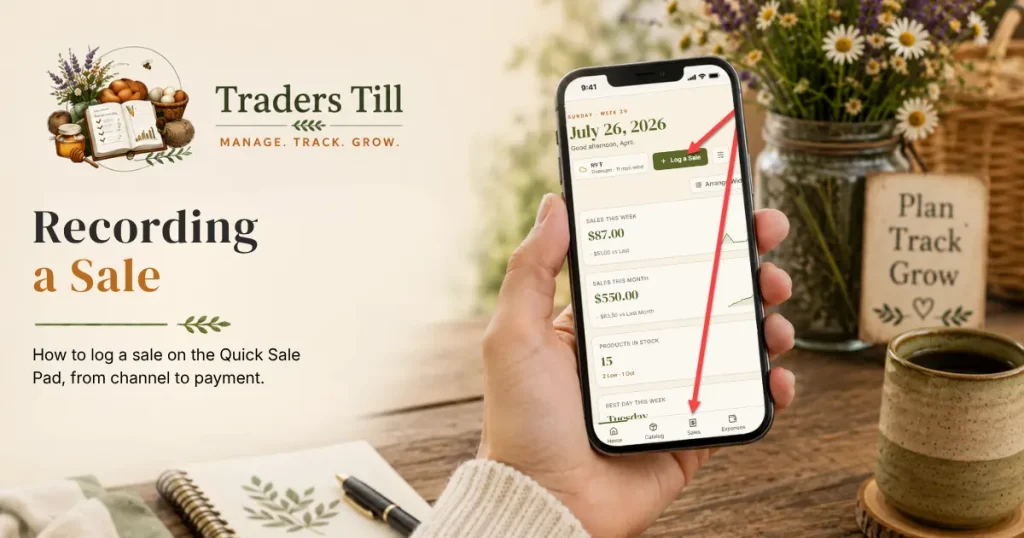
Recording a sale is the single most-used flow in Traders Till. The Quick Sale Pad is built for the busy farmers market table, the porch stand, and the kitchen counter at end of day. This guide walks the whole path, including mixed payments.
How do I open the Quick Sale Pad?
Tap Log a Sale and the Quick Sale Pad opens full screen. The button lives in two places:
- On the home dashboard, at the top right of the day header.
- At the top of the Sales page (open Sales from the navigation).
The Pad stacks three things: the channel selector at the top, the product grid in the middle, and the cart below it.
How do I pick the channel and products?
Pick the channel at the top of the Pad, then tap product tiles to add them to the cart. The channel is how you sell: the venue type, not a specific market. Only Farm Stand is created for you, and it starts as your default. Add or rename channels (Farmers Market, Online Store, Wholesale, CSA, Donation, Gift, or Other) in Settings → Sales Channels.
The grid shows one tile per product size, with the price. Tapping works like this:
- Tap a tile once to add 1 unit to the cart at its current price.
- Tap the same tile again to bump that cart line to 2. No duplicate lines.
- Items priced by weight work differently. Tapping one opens the Sell by Weight sheet instead of adding 1 (covered below).
- Use the + and − steppers on a cart line to adjust. Hitting − at quantity 1 removes the line, and the × removes it directly.
A few things worth knowing about the tiles:
- Low-stock items show “Low: 3 left” style labels. You can still sell them.
- Out-of-stock items say “Out of stock.” You can still sell those too (more on that below).
- Untracked items say “Not tracked” and never warn. Made-to-order goods behave this way.
- Supplies never appear. Flour, jars, and labels are recipe inputs, not sellable products.
- Channel prices apply automatically. If a product has a special price for the selected channel, the tile and cart use it.
To change a price for this sale only, tap the price on the cart line. The Change Price sheet opens: type the new price, pick a reason (Discount, Package Deal, Market Special, Gift, or Other), and tap Save. The line gets a “Price changed” badge, and Reset to Default undoes it. The product’s saved price never changes.
How do I sell something by weight?
Tap the item’s tile and the Sell by Weight sheet opens: type what the scale says, and the price computes as you type. This happens automatically for any product whose unit is a weight or volume (lb, oz, kg, cup, gallon, and so on). The sheet shows the price per unit at the top, so entering 1.35 lb of tomatoes at $4.00 per lb reads “comes to $5.40” before you commit.
- Tap the product tile. The Sell by Weight sheet opens with the cursor ready.
- Type the weight from your scale, up to three decimals.
- Check the computed price, then tap Add to Sale.
Sometimes it’s easier to work backward: tap Enter a price instead, type the dollars ($5.00 even), and the sheet computes the weight for you. The same button flips back the other way.
Each weighing lands as its own cart line with a “by weight” badge, and two weighings never merge into one line. That matches how the scale works: three separate bags of tomatoes are three lines. By-weight lines don’t have + and − steppers; tap the weight on the line to reopen the sheet and correct it. The line price always rounds to the nearest cent, and inventory decrements by the exact weight sold.
How do I take payment?
Tap Take Payment at the bottom of the cart, pick how the customer paid, and tap Record Sale. The payment sheet shows the subtotal, any discount, the tax line, and the total. Payment methods: Cash, Card, Card (Stripe), Square, Check, Venmo, Zelle, Cash App, or Other. Cash is preselected.
If you turned on tip buttons in Settings, then Payments, then Tips, the sheet also offers an Add a tip row: your percentage buttons, a custom amount, or No tip. The tip is added on top of the total, recorded on the sale, and never taxed.
Everything else on the sheet is optional:
- Customer. Defaults to Walk-in. Attach one if you’re tracking regulars.
- Market / Event. Tag the specific named market you’re selling at. The channel is how you sell; the market is where, by name.
- Discount. Tap Add a Discount for a sale-wide discount, as dollars off or a percent. It applies to the whole sale before tax.
- Notes. A short note for your records.
If the channel has a tax rate assigned and the items are taxable, the tax line fills in on its own. There is nothing to enter at the register; see Setting Up Sales Tax for how the rate gets there.
Just as important is what you don’t have to do: no customer required, no categorizing (the channel and the products’ ventures handle that), and no payment processor setup. Cash and manual card entry work from day one.
How do I record a split payment?
Tap Split payment, below the payment methods, and give each method its share of the total. This covers the customer who hands you $20 cash and Venmos the rest.
- In the payment sheet, tap Split payment.
- Two lines appear, Cash and Card. Type a dollar amount on each line you’re using.
- Add other methods with the Add another method chips, or remove extras with the ×.
- Shortcuts help with the math: Even split divides the total across the lines, and Rest on Cash (or any method) drops whatever is unassigned onto that line.
- The sheet shows what’s left to assign. Record Sale stays locked until the amounts add up to the total exactly.
Every method and amount is stored on the sale, so your records show exactly how the money arrived. In by-payment-method reporting, the sale counts under the method that took the largest share.
On Bloom and up you can also apply a gift card by code in the same sheet. The card covers up to its balance, and whatever remains goes on a single method or a split.
What happens when I save the sale?
The sale posts immediately. In the next few seconds:
- Inventory decrements for every tracked product by the quantity sold.
- The Sales page totals update. The Today, This Week, This Month, and Year to Date figures tick up, and the sale appears at the top of the Recent Sales list.
- Venture totals update. Each line carries its product’s venture, so per-venture numbers stay right without any work from you.
- Both dates are stamped. The sale date (when it happened) and payment date (when the money moved) are recorded as today. They’re separate fields because cash-basis and accrual-basis views read different ones.
On the free tier, the Sales page also shows your monthly count against the 50-sale cap. A warning banner appears when you have 10 or fewer left, and after the 50th sale the Pad shows a “Free-tier limit reached” notice until you upgrade or the month resets on the 1st.
What if I sell more than I have in stock?
Record the sale anyway; Traders Till allows it by default. If a customer wants 3 loaves and the app thinks you have 2, the stock count drops below zero and you get a warning naming the affected items, with an Adjust Stock link to reconcile later. The number in the catalog is your best guess at what’s on the shelf; the sale is the real event.
If you want different behavior, go to Settings → Sales Channels and set the below-zero policy: Allow (record quietly), Warn (the default), or Block (stop the entry until you add stock).
What if I made a mistake?
Three paths, depending on what happened:
- Edit. Within 24 hours you can change the channel, customer, dates, payment method, and notes. Line items can’t be edited; void and re-record instead.
- Refund. Return some or all of the money. The original sale stays on the books.
- Void. For sales that shouldn’t exist at all. Inventory restores and the free-tier slot comes back. Available for 90 days.
The full decision guide, including worked refund examples, is in Voiding, Refunding, and Editing a Sale.
Common questions
How do I give a discount or change the price on a sale?
Two ways. For one item, tap its price on the cart line to open the Change Price sheet, type the new price, and pick a reason (Discount, Package Deal, Market Special, Gift, or Other). The line then shows a "Price changed" badge, and Reset to Default puts it back. For the whole sale, tap Add a Discount in the payment sheet and enter a dollar amount or a percent. The sale-wide discount applies before tax.
Can a customer pay part cash and part Venmo on one sale?
Yes. In the payment sheet, tap Split payment. Enter the dollar amount for each method, add more methods if you need them, and use the Even split or "Rest on" shortcuts to fill in the remainder. The amounts have to add up to the sale total exactly before Record Sale unlocks. Every method and amount is saved on the sale.
Can I edit a sale after I save it?
Partly, and only for 24 hours. You can change the channel, customer, sale date, payment date, payment method, and notes. You cannot change the products, quantities, or prices on a saved sale. If the line items are wrong, void the sale and record it again. After 24 hours, edits lock and your options are refund or void.
Can I sell something that shows zero stock?
Yes, by default. The sale records, the stock count goes negative, and you get a warning naming the items so you can reconcile later (you probably made a batch you never logged). If you'd rather be stopped, change the setting under Settings, then Sales Channels: choose Allow, Warn, or Block for entries that would go below zero.
I'm on the free tier, is there a sales limit?
Yes. Free accounts can record 50 sales per calendar month. A warning banner appears once you have 10 or fewer left, and after the 50th the Quick Sale Pad blocks new sales until you upgrade or the month resets on the 1st. Voiding a sale frees its slot; refunding does not.
How does the sale know which venture it belongs to?
Each product in your catalog already has a venture attached. When you tap a product in the Quick Sale Pad, its venture comes along with it and is snapshotted on the sale. If one sale mixes products from two ventures, like a sourdough loaf from Bakery plus a dozen eggs from Chickens, the totals roll up to each venture correctly. Nothing to configure at sale time.
Keep Reading