
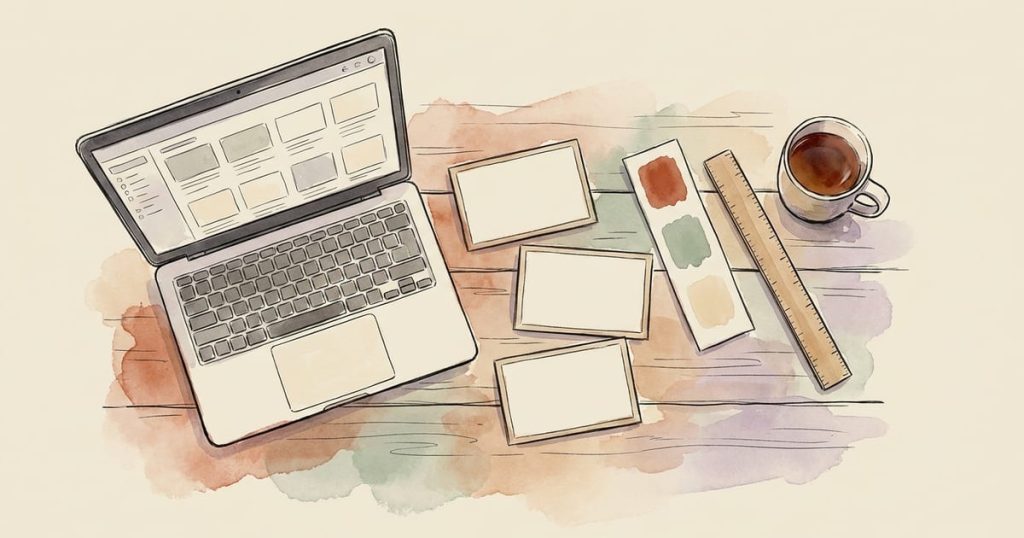
You don't need AI to make a sign, a flyer, or a social post look professional. Canva's free plan, a template, and twenty minutes will get you there, and everything you make stays entirely your own, hand-picked colors, your own words, no tool guessing at what you meant. This is the no-AI path for anyone who'd rather build it themselves, or just doesn't want an AI tool involved in their business at all, and that is a completely fine way to run things.
Why Canva, specifically
Canva's free plan includes a real template library (signs, flyers, social posts, business cards), drag-and-drop editing that doesn't require any design background, and exports sized correctly for print or for whatever platform you're posting to.
You are not locked into anything, and you own every file you make. If you've ever resized a photo in your phone's default editor and wondered why it looked stretched, Canva solves exactly that kind of problem without you needing to learn design software.
A simple workflow, start to finish
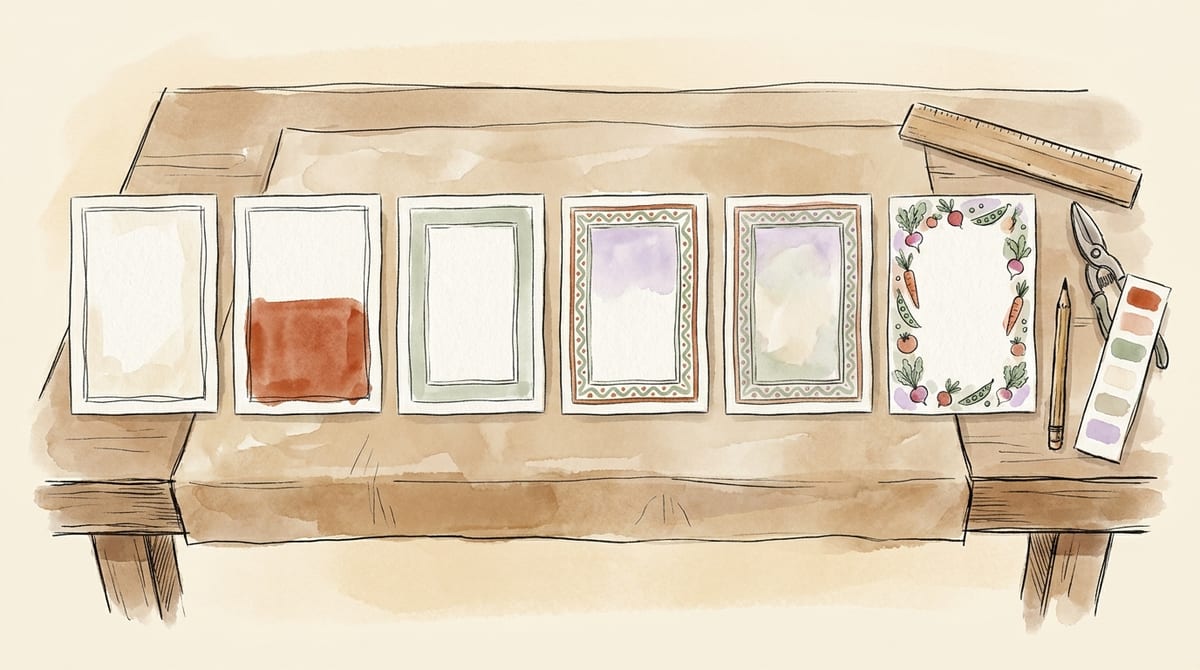
1. Pick the right template size first. Search Canva's template library for what you actually need: "yard sign," "flyer," "Instagram post," "Facebook cover." Getting the size right at the start saves you from redoing the whole thing later. A standard roadside yard sign, for reference, is usually printed at 18 by 24 inches, landscape.
2. Start from a template, don't build from a blank canvas. Templates exist so you don't have to solve layout and spacing from scratch. Pick one in a style close to what you want (rustic, modern, playful, chalkboard) and swap the pieces, rather than starting empty and second-guessing every choice.
Note: You don't have to use templates specific to what your final product is. Search random words / templates like "Announcement" or "Flyer" or "Sale". What you're looking for is a base layout or idea which you can customize for your desired end result.
3. Swap in your own words and photos. Replace the placeholder headline with your actual message ("Fresh Eggs," "Farm Stand Open," this week's specials). If the template has a photo placeholder, use one of your own; this is the one place a real photo genuinely beats anything else, since it's showing people what you actually sell.
4. Keep the words to a minimum, especially on a sign. A driver passing at 45 miles per hour has about two seconds to read anything roadside. One headline, a couple of supporting words, and an arrow if they need to turn is plenty; more than that just doesn't get read. (We go deep on sign legibility specifically, letter height, sighting distance, where you're legally allowed to place one, in our farm stand sign ideas guide.)
5. Match your colors across everything. Canva makes it easy to save a brand kit (even on the free plan, in a limited form): your main colors and a font pairing you reuse on every sign, post, and flyer. Consistency across your signs, your packaging, and your social posts is what makes a small stand start to look like an established, trustworthy business, even in its first season.
6. Export at the right size and print or post it. Canva exports as a print-ready PDF or PNG at the size you set up. For anything going to a print shop on corrugated plastic (the standard yard-sign material), check that the shop accepts a straight PDF or PNG export; most do.
Start Traders Till for free.
Cost your products, print compliant labels, and track every sale. Free forever plan, no card required.
A worked example: our feedback notepads
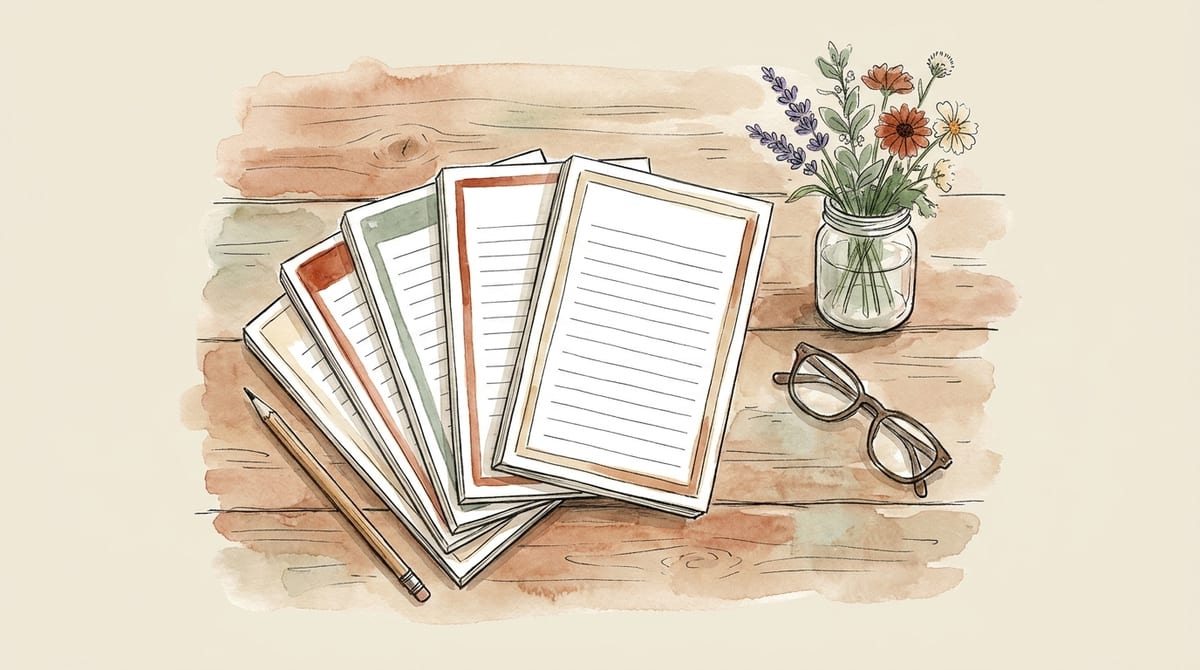
We use this exact workflow ourselves. For our farm stand feedback notepad pack, the final five designs that actually ship to customers were built by hand in Canva, at exact print size, with no AI involved in the finished product at all.
We even included a link to an editable Canva template in the pack itself, so anyone who downloads it can open it and make it their own, their colors, their farm name, their own questions. No AI step required anywhere in that path, start to finish.
If you'd rather use a little AI to speed things up
There's nothing wrong with that either, and it isn't cheating. Plenty of sellers use AI for a faster starting point on backgrounds, seasonal art, or a first pass at their wording, then finish everything by hand in Canva exactly as described above. The workflow in this guide doesn't change; you'd just be starting from a rough draft instead of a template.
Bottom line
A template, your own words, your own photos, and twenty minutes in Canva will get you a professional-looking sign or flyer with zero AI involved. If that's the path you'd rather be on, whether it's preference, principle, or just what feels right for your brand, it's a completely solid way to market a home food or craft business.
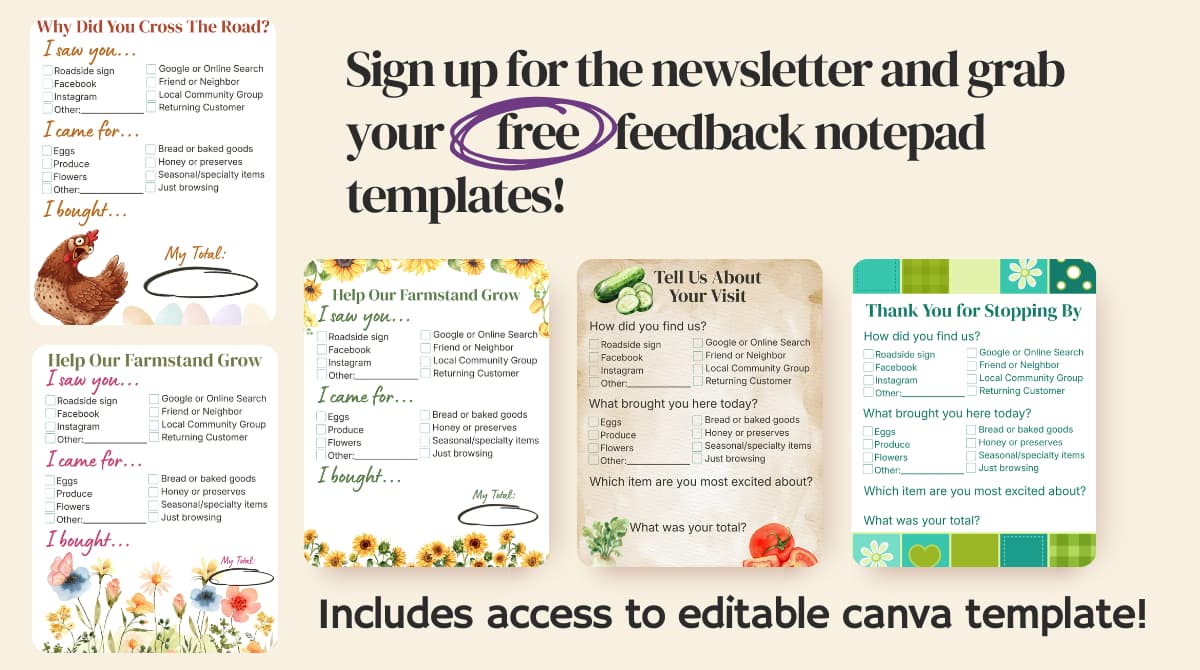
You’re in! Check your inbox to confirm your subscription, and your free farm stand feedback notepads, editable Canva template included, are on their way.
Five designs, built by hand in Canva, editable template included. We email you the pack. No spam, unsubscribe anytime. Entering your email also subscribes you to the Traders Till newsletter.
Looking for ready-made roadside signs instead? We have ten finished farm stand sign designs on our farm stand sign ideas page. Fair warning if you're here because you'd rather avoid AI: those particular designs were AI-drafted, so build your own from step 1 above if that's a dealbreaker.
Summarize & Save This Guide On
Add Traders Till As A Preferred Source on Google Prompt copiedApril Lee has a B.S. in Agriculture from Cal Poly Pomona, is a certified food handler (ANAB-accredited, Learn2Serve), and holds ANAB-accredited food allergy training. She writes about selling homemade and homegrown products - cottage food rules, pricing, and the business side of farm stands - and is the co-founder of Traders Till, an app that helps home producers track what they make, sell, and earn.
Start Traders Till for free.
Cost your products, print compliant labels, and track every sale. Free forever plan, no card required.
 Save to Pinterest