
Setting Up Sales Tax

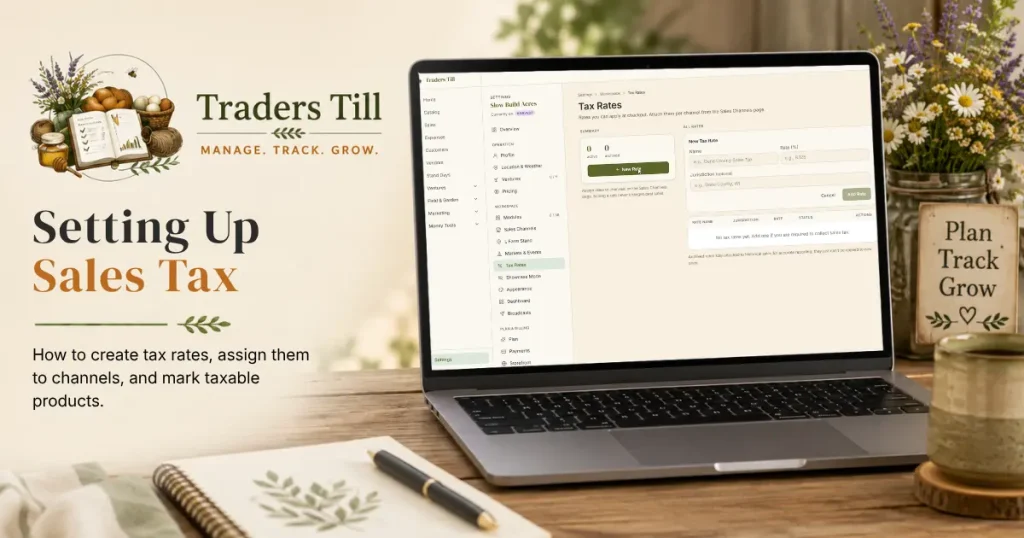
Traders Till handles sales tax with three small pieces: rates you define, a rate assignment per channel, and a taxable flag per product. Set those once and checkout does the math every time. What Traders Till doesn’t do is pick your rate for you; that number comes from your state and local rules, so start there.
How do I create a tax rate?
Go to Settings → Tax Rates and tap New Rate. Each rate has three fields:
- Name. What you’ll see in dropdowns, like “Dane County Sales Tax.”
- Rate (%). From 0 to 100, with up to 3 decimals, so 8.125% works fine.
- Jurisdiction. Optional, for your own records (“WI + Dane County”).
Create one rate per distinct combined rate you charge. Many operations need exactly one. If you sell at markets in two counties with different combined rates, create a rate for each and assign them to different channels.
How do I apply a rate to a channel?
Assign rates on the Settings → Sales Channels page; every channel has a Tax Rate dropdown right in its row. The default is No tax, which is the usual choice for donation and gift channels, and for anywhere you don’t collect tax.
The channel is what carries the rate at checkout. When you record a sale on a channel with a rate assigned, that rate applies; on a “No tax” channel, no tax is charged no matter what’s in the cart. This is how the same jam jar can be taxed at one market and not at another: two channels, two assignments.
How do I mark a product as taxable or not?
Every product has a Charge sales tax on this item toggle in its form, and it’s on by default. Open the product from your Catalog (or set it while adding one) and turn the toggle off for goods your state doesn’t tax; raw produce is the common example in many states.
The toggle covers the whole product, all sizes included. Non-taxable items simply contribute nothing to the tax line, even on a channel with a rate.
How is tax calculated at sale time?
At checkout, Traders Till applies the channel’s rate to the taxable items in the cart, automatically. While you’re building the sale, the cart shows a “Tax calculated at checkout” hint whenever the math will apply, and the payment sheet shows the tax line before you confirm. There is nothing to enter by hand, and no way to fat-finger the rate at the register.
Two details worth knowing:
- Discounts reduce the taxable amount. A sale-wide discount shrinks each line’s taxable share proportionally, so tax is charged on what the customer actually paid. Per-line price changes are taxed at the changed price.
- Every sale snapshots its tax. Each line stores the rate and the tax charged at that moment. Your history is a record of what really happened, not a formula that re-runs later.
What about online orders?
If you take card payments on your storefront, online checkout charges the same tax your Online Storefront channel’s rate would compute, right with the payment, as its own Sales tax line. The amount is locked in when the customer checks out, so editing a rate later never changes what someone already paid. On deposit orders the full tax is collected with the deposit, and the balance due at pickup stays just the remaining goods. Orders where customers pay in person at pickup work the way they always have: tax is added when you record the sale.
What happens to tax on a refund?
Refunds return tax proportionally, and the form does the math for you. Refund a whole line and its whole tax comes back; refund half the line’s amount and half its tax comes back. Each included line in the refund form shows “Tax to refund,” and the refund total breaks out subtotal and tax so there are no surprises. The calculation uses the rate snapshotted at sale time, so it stays correct even if you’ve changed the rate since. See Voiding, Refunding, and Editing a Sale for the full refund walkthrough.
What if I change or archive a rate later?
Past sales never change; only future sales pick up the new number. Edit a rate and every sale from that point on uses the updated percentage. That’s also why the Tax Rates page says editing a rate never changes past sales.
Retiring a rate works by archiving, not deleting:
- You can’t archive a rate that’s still assigned to an active channel. Unassign it on the Sales Channels page first; the error names the channels holding it.
- Archived rates keep your history intact. Old sales still show the rate they were charged under.
- An archived rate charges nothing. If a channel ends up pointing at an archived rate, sales on it charge no tax, and the Sales Channels page shows a warning asking you to pick a new rate or No tax.
- Restore brings an archived rate back if you need it again.
Can Stripe handle my tax instead?
Yes, if you take card payments online. In Settings, then Payments, on the Tips, tax and fees tab, you can choose where sales tax is handled: your manual rates here, or automatic Stripe Tax. You pick one, not both.
If you choose Stripe Tax:
- You activate Stripe Tax and add your tax registrations in your own Stripe dashboard. That part is on you, and Stripe charges its own small fee for the calculation.
- At online checkout, Stripe works out the tax from the customer’s address and charges it with the payment. Traders Till records what Stripe collected and includes it in your reports.
- The filing reports live in your Stripe dashboard, not in Traders Till.
- Your manual rates here stop applying everywhere, including in-person sales at the Pad. Most sellers who choose Stripe Tax fold tax into their in-person prices.
- This page becomes read-only until you switch back.
If you stay with manual rates, we assume automatic tax is turned off in your Stripe dashboard. If both end up on, your online customers get taxed twice. Traders Till cannot see or change your Stripe tax settings, so double-check there if you ever connected Stripe Tax in the past.
Sources
- State government websites (IRS directory) – find your state’s revenue department for current sales tax rates and rules on which goods are taxable.
Common questions
Why is no tax showing on my sale?
Two settings have to line up. The channel you're selling on needs a tax rate assigned (Settings, then Sales Channels), and at least one item in the cart has to be marked taxable in the catalog. If the channel says "No tax," or every item's taxable toggle is off, the tax line stays at zero. A rate that was archived also stops charging.
Does Traders Till know my state's tax rate?
No. You enter your own rates, because the right rate depends on your state, county, city, and what you sell. Check your state revenue department for the combined rate at your location, create it as a rate in Settings, then Tax Rates, and assign it to the channels where it applies.
If I change a tax rate, do my old sales update?
No, and that's deliberate. Every sale snapshots the rate and the tax charged at the moment it was recorded. Editing or archiving a rate only affects sales going forward, so your history and past reports never quietly change.
How is tax handled when I give a discount?
A sale-wide discount reduces the taxable amount proportionally across the items, so the customer is taxed on what they actually paid. A per-line price change simply taxes at the new line price. Either way the math happens automatically at checkout.
Is tax refunded when I refund a sale?
Yes, proportionally and automatically. When you refund part or all of a line, the matching share of that line's tax comes back too, using the rate snapshotted at sale time. The refund form shows "Tax to refund" per line so you can see it before confirming.
Keep Reading