
Adding Your First Product

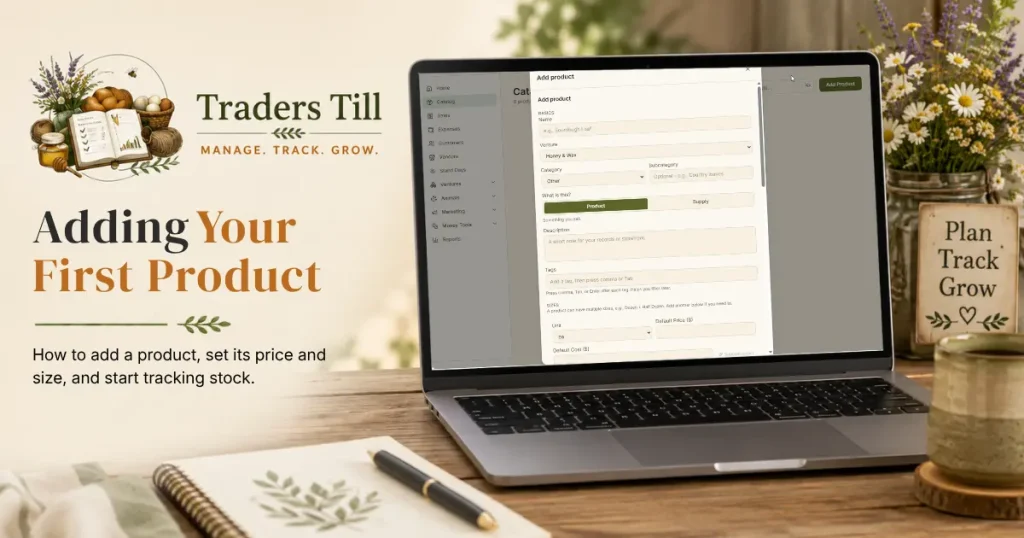
Your catalog is the backbone of everything else in Traders Till. Sales, stock, recipes, and per-venture profit all key off the products you add here. The good news: a name, a venture, and a price is all it takes to get the first one in.
Where do I add a product?
On the Catalog page (/catalog), tap the Add Product button at the top right. A small menu opens with two choices:
- Add Manually. One product, one form. This is the path this article walks.
- Upload CSV. Bulk import for when you have a whole list ready.
If your catalog is empty, the page also shows an Add Your First Product button front and center. Both routes open the same “Add product” form.
One prerequisite: you need at least one active venture. If you have none, the button is disabled and the form will tell you to activate a hobby module first, so the product has a venture to live in.
What fields are required, and what can I skip?
Only three things are required: a name, a venture, and a price. Everything else can wait.
Name(required). What you call it, like “Sourdough Loaf”.Venture(required for products). The profit center this product belongs to. Every sale of this product rolls up to this venture. See What Is a Venture.Category(required, but pre-filled). Picked from a fixed list; it defaults to Other, so you can leave it and refine later.Subcategory(optional). Free-form text, like “Country loaves”.Description(optional). A short note for your records or storefront.Tags(optional). Press comma, Tab, or Enter after each tag. Tags help you filter the catalog later.
Each size of the product then gets its own Unit, Default Price ($), and Default Cost ($):
Unit. How you count it: ea, dozen, lb, oz, bunch, and so on. New sizes default to “ea”.Default Price ($)(required). What one sells for.Default Cost ($)(optional). What it costs you to make or source one. There is also a Suggest a cost button that estimates a cost from the item name and unit if you are not sure.Barcode (optional). The UPC or EAN printed on the packaging, one per size. Type it in, or tap Scan to fill it from your phone’s camera. Once a size has a barcode, the Scan button in the catalog toolbar jumps straight to that item. Barcodes are yours alone and each one can only be used once in your catalog.
What does the Product vs Supply toggle mean?
The “What is this?” toggle sets whether the item is something you sell or something you use. Product means something you sell. Supply means an ingredient or material you use to make products; supplies stay out of the Quick Sale Pad and show up when you are building a recipe.
The practical difference at add time: a product must have a venture, but a supply’s venture is optional. For supplies the field reads Venture (optional) and includes a “None (shared across ventures)” choice, which is the right pick for things like flour or jars that feed products in more than one venture.
Is inventory tracking on by default?
Yes. Each size has a Track Inventory checkbox that starts checked. While it is on, you can enter a Starting Stock count and a Low-Stock Threshold. The threshold drives the “Low” badge: you will see it whenever stock is at or below that number.
Turn Track Inventory off for services and made-to-order items. Untracked items show “Not tracked” in the catalog instead of a count, and they never warn about stock.
What are sizes, and when should I add another?
Sizes are variants of one product that are sold and tracked separately, like Dozen and Half Dozen for eggs. Most products start with a single size, and the form keeps that simple: one row with unit, price, and cost.
Tap Add Another Size when one product genuinely comes in more than one sellable form. The form then asks you to name the existing size (like “Dozen”) so customers can tell it apart, and each size row gets its own Size Name, unit, price, cost, and inventory tracking. Each size can even use a different unit, like Loaf and Roll for bread and buns. If you want every size to share one unit or tracking setting, the “Apply to all sizes” link on the first row copies it down in one click.
Do not use sizes for genuinely different products. Blueberry jam and strawberry jam are two products, not two sizes.
Can I add a photo?
Yes, but after the product is created. The photo section on the Add Product form is a placeholder that says “Add a photo after creating the product.” Once you save:
- Open the product from the catalog.
- Tap Edit.
- Upload the photo in the Photo section.
What happens after I save?
Tap Add Product at the bottom of the form and the product lands in your catalog immediately, ready to sell. If you entered a cost higher than the price, the form pauses with “Your cost is higher than your price. Save anyway?” and the button becomes Save Anyway; confirm to proceed or fix the numbers.
From here the natural next steps are adjusting stock as you make or harvest more, and recording your first sale.
Common questions
Do I have to assign a venture to every product?
Every product needs a venture, because sales and profit roll up by venture. The one exception is supplies. If you mark an item as a Supply in the "What is this?" toggle, the venture field becomes optional and you can leave it as "None (shared across ventures)" for ingredients you use in more than one venture.
Can I add a photo while creating the product?
Not during creation. The photo section on the Add Product form shows "Add a photo after creating the product." Save the product first, then open it from the catalog, tap Edit, and upload the photo there.
What happens if my cost is higher than my price?
The form warns you: "Your cost is higher than your price. Save anyway?" Tap Save Anyway to keep it. This is a heads-up, not a block, since some items (loss leaders, samples priced low) legitimately cost more than they sell for.
Can I add a lot of products at once instead of one at a time?
Yes. The Add Product button also offers Upload CSV. You can import up to 500 rows per upload (2MB max), with a downloadable template and a values reference listing every venture, category, and unit the app accepts. Each row is previewed before anything saves.
What is the difference between a Product and a Supply?
A Product is something you sell. A Supply is an ingredient or material you use to make products, like flour or wax. Supplies stay out of the Quick Sale Pad and show up when you build a recipe. Supplies can also skip the venture assignment; products cannot.
Keep Reading