
Getting Paid Online

Until now, everything on your storefront was reserve-now, pay-at-pickup. Getting paid online adds the other half: customers pay by card the moment they order, and you hand over the goods already paid. This guide covers connecting Stripe, choosing where card payment applies, taking deposits, and what a paid order looks like on your side. Online checkout runs on your storefront, so it’s part of the Bloom plan.
How do I connect Stripe?
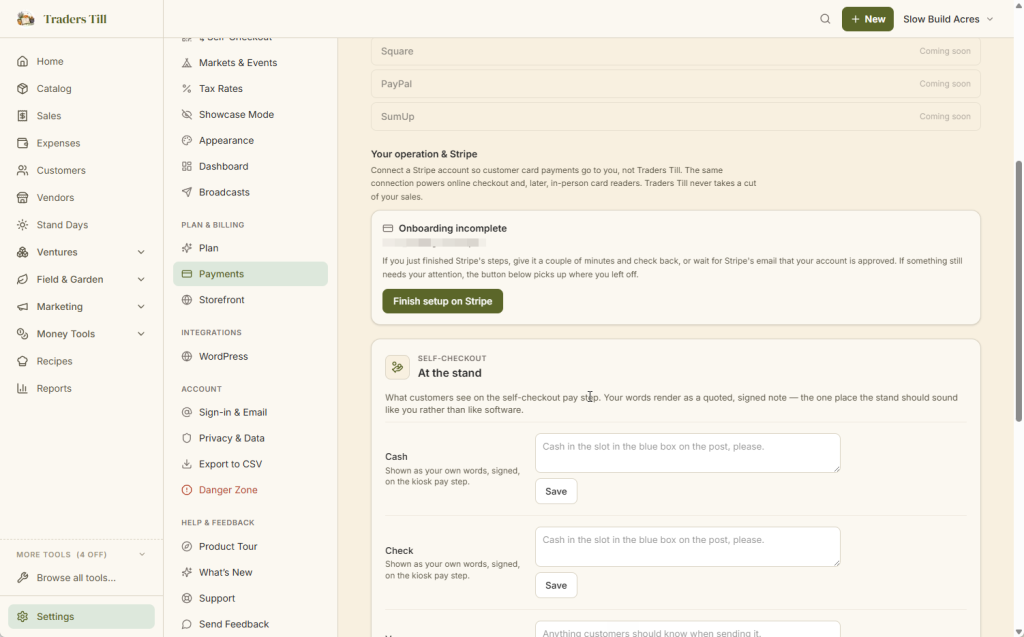
Open Settings, tap Payments, and use the Card processor tab. Stripe is the processor available today (Square, PayPal, and SumUp show as coming soon). Under “Your operation & Stripe,” tap Onboard to collect payments. Traders Till creates a Stripe account connected to your operation and sends you to Stripe’s own site to fill in your business details, identity, and bank account.
A few things worth knowing before you start:
- Payments go to you, not Traders Till. The charge lands on your
connected Stripe account, and Traders Till never takes a cut. - It’s a full Stripe account. You can sign in to the Stripe dashboard
to see charges, receipts, payouts, and balances. - Payouts land in your Stripe balance and pay out to your bank on
Stripe’s schedule, managed from your Stripe dashboard.
When Stripe finishes, you’re sent back to the Payments page and the status card reads “Connected and ready to collect card payments.”
What if my onboarding says incomplete?
Give it a couple of minutes first. Right after you finish Stripe’s steps, verification often just needs a moment, so check back shortly or wait for Stripe’s email that your account is approved. The Payments page says exactly that when your account is in this state.
If Stripe still needs something from you, the status card shows “Onboarding incomplete” along with Stripe’s last noted item, and the Finish setup on Stripe button picks up right where you left off. You can restart from that button as many times as you need; your progress on Stripe’s side is saved.
What can customers pay for online?
Card checkout works on your storefront’s drops and pre-orders. When a customer reserves and card payment is on for that channel, they’re sent to Stripe’s secure checkout page to pay by card before the order is confirmed. Delivery fees and discounts are included in the charge, and the Stripe page shows your stand’s name on the line item.
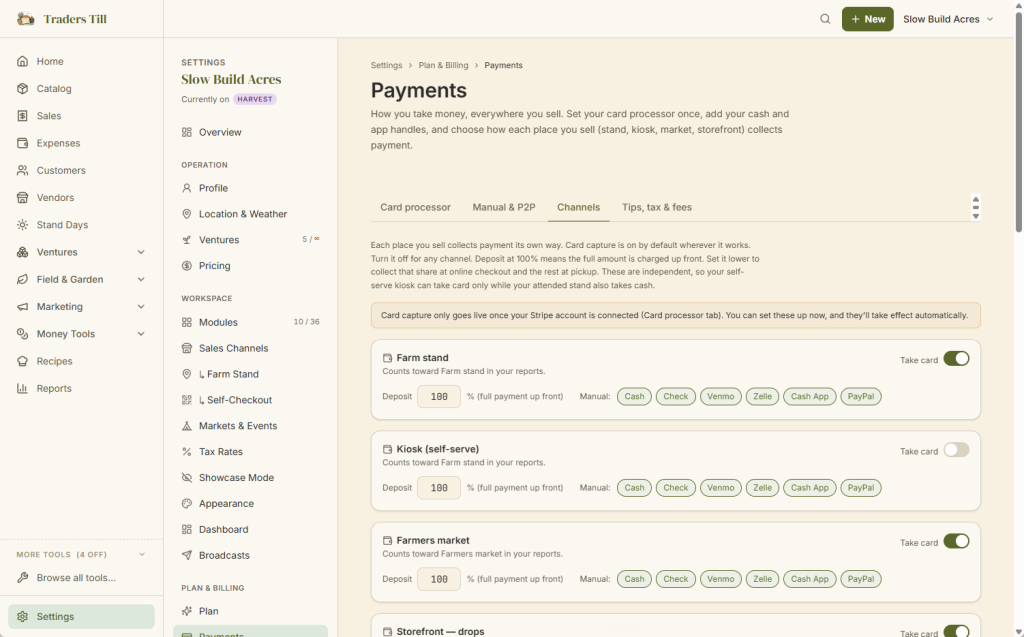
You control where card payment applies in Settings → Payments, on the Channels tab. The page opens on Card processor, so click across to Channels. Each place you sell gets its own row with a Take card switch, on by default for the storefront channels. That switch turns card payment on or off for that channel; which card brands a customer can use is handled by Stripe, not set here. Each row also carries a Deposit percent and a set of Manual payment methods (cash, check, Venmo, Zelle, Cash App, PayPal) for that channel. You can set all of these up before Stripe is connected; they take effect automatically once your account is approved.
A few places don’t take online card payment today:
- Custom quotes still settle in person. A quote’s deposit is agreed
between you and the customer and collected at pickup or delivery. - Wholesale orders settle by invoice or check, the way they always have.
- Card readers for in-person sales at your stand are coming soon. The
same Stripe connection will power them.
While a customer is on the Stripe page, their items stay held. If they pay, they land back on your storefront with a green “You’re all set! Payment received.” confirmation, plus a receipt from Stripe and a confirmation email from Traders Till. If they cancel, the page tells them their items are held for a few more minutes if they want to try again. If they simply walk away, the checkout expires after 30 minutes and the reservation cancels itself, so abandoned carts never clutter your board or strand your inventory.
How do deposits work?
Each channel row on the Channels tab has a Deposit percent, and 100 means the full amount is charged up front. That’s the default everywhere, so nothing changes until you dial a channel lower. Set it to, say, 25, and online checkout charges 25% of the order total now; the rest is collected in person at pickup.
The details, so the numbers never surprise you:
- The deposit is rounded to the nearest cent from the order total, which
includes any delivery fee and discount. - Stripe can’t charge less than 50 cents. If the computed deposit comes
out below that, checkout charges the full total instead. - The customer’s paid email and the Stripe checkout page both say it’s a
deposit and show the percent, and the paid email states the balance
still due at pickup.
Where do I see that an order is paid?
On the Pickups board (Storefront -> Pickups), a fully paid order carries a green Paid badge next to its channel badge, and its “Ordered” line ends with “paid online.” A deposit order carries an amber Deposit paid badge instead, with the remaining amount due shown under the order total, so a part-paid row never reads as settled.
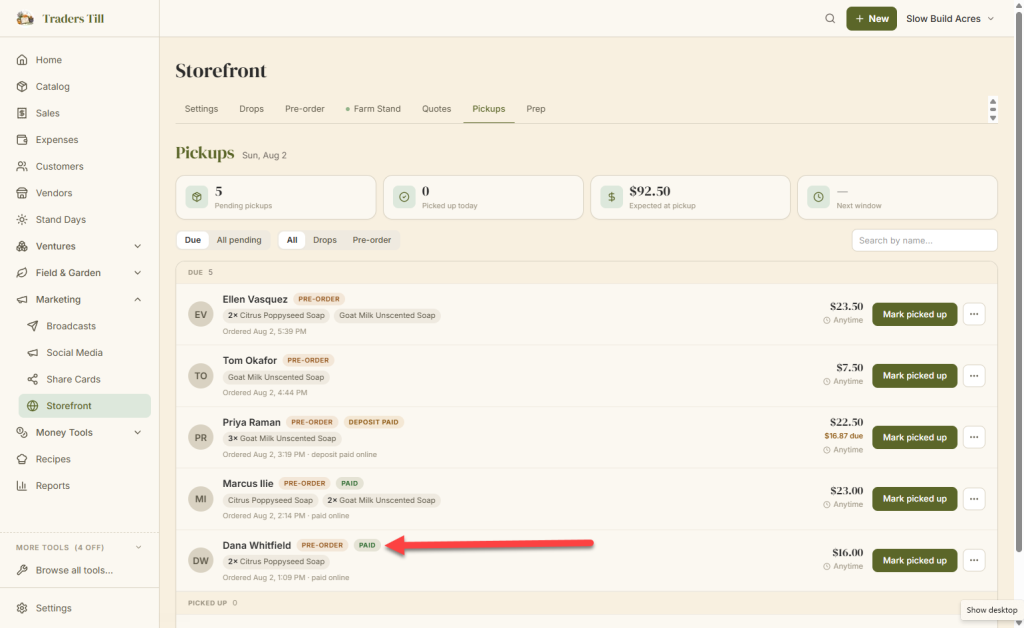
When you tap Mark Picked Up on a fully paid order, the sale records with card (online) as its payment method, and no money changes hands at the stand. For a deposit order, the menu asks how the balance was paid, and the sale records both parts. Your books also stay honest on dates: the sale’s payment date is the day the card was charged, while the transaction date is the pickup day, following the same dual-date rule as everything else in Traders Till.
What does it cost?
Traders Till adds nothing. There’s no platform fee and no percentage taken from your sales; 100% of each charge goes to your connected Stripe account. Stripe charges its own card-processing fees for each payment, and Stripe bills those to your account directly. Traders Till doesn’t set those rates, so check Stripe’s published pricing for current numbers.
What about refunds and disputes?
To return money from an online card payment, issue the refund from your Stripe dashboard, since the charge lives on your Stripe account. Then record the refund in Traders Till the same way as any other sale, so your books and inventory match; see Voiding, Refunding, and Editing a Sale.
Card disputes (a customer telling their bank to pull the payment back) are tracked for you. When a dispute arrives from Stripe, Traders Till marks the linked sale as charged back automatically, so your reports can show reversal rates by payment method. If the dispute lands before the customer even picks up, the mark waits on the reservation and carries onto the sale when you record the pickup. You can also mark a chargeback by hand from a sale’s detail panel, which works for any payment method, not just cards. The chargeback mark is bookkeeping only: it moves no inventory and writes no money rows, because the money left through the card network, not through Traders Till. You respond to the dispute itself in your Stripe dashboard.
What happens next?
Once Stripe is connected, orders start arriving already paid, and your job shifts to fulfillment. The board that gathers them all, with the Paid and Deposit paid badges in one place, is covered in The Pickups Board. And if you haven’t published your storefront yet, start with Setting Up Your Storefront.
Common questions
Does Traders Till take a cut of my online sales?
No. Traders Till adds no platform fee to your card payments, so the full charge lands in your Stripe account. Stripe charges its own card-processing fees, and Stripe bills those to your Stripe account directly, the same as any business using Stripe. Check Stripe's published pricing for the current rates.
Do I need my own Stripe account before I start?
No. When you tap Onboard to collect payments, Traders Till creates a Stripe account connected to your operation and sends you to Stripe to fill in your details. It is a full Stripe account: you can sign in to the Stripe dashboard to see payouts, receipts, and balances any time.
Why isn't card payment showing up on my storefront?
Card checkout only goes live once Stripe has approved your connected account. Open Settings, tap Payments, and check the Card processor tab: it should say "Connected and ready to collect card payments." If it says onboarding is incomplete, tap Finish setup on Stripe. Your storefront also has to be published, which is part of the Bloom plan.
Can I take a deposit online instead of full payment?
Yes. On the Channels tab of Settings, tap Payments, each place you sell has a Deposit percent. At 100, the customer pays the full total at checkout. Set it lower, like 25, and checkout charges that share now; the rest is collected at pickup. Very small deposits (under 50 cents) fall back to charging the full total.
What happens if a customer starts paying and never finishes?
Their items are held while the Stripe checkout page is open. If they don't pay within 30 minutes, the checkout expires, the reservation is cancelled automatically, and the held quantities go back into the drop. Nothing shows up on your pickups board and no money moves.
When do I actually get the money?
Payments go into your Stripe balance as soon as the customer pays, and Stripe pays that balance out to your bank on Stripe's payout schedule. Traders Till never holds your money. You can see and manage payouts in your Stripe dashboard.
Keep Reading