
Taking Pre-Orders

Not everything you sell fits a timed drop. Pre-orders are for the things you make to order: a standing menu customers can reserve from any day of the week, with no countdown and no quantity race. This guide covers setting up the menu, managing it, and what customers see.
What are pre-orders in Traders Till?
Pre-orders are a standing catalog of items customers can reserve ahead, with no time pressure. Your storefront has one pre-order menu. Unlike a drop, it has no open and close times and no per-item quantity counters; each item is simply available or marked sold out by you.
Every pre-order flows through the same reservation system as drops: the customer gets a confirmation email, the order lands on your pickups board, and the sale is recorded when you mark it picked up. Pre-order writes are part of the Bloom plan, like the rest of the storefront.
How do I list items for pre-order?
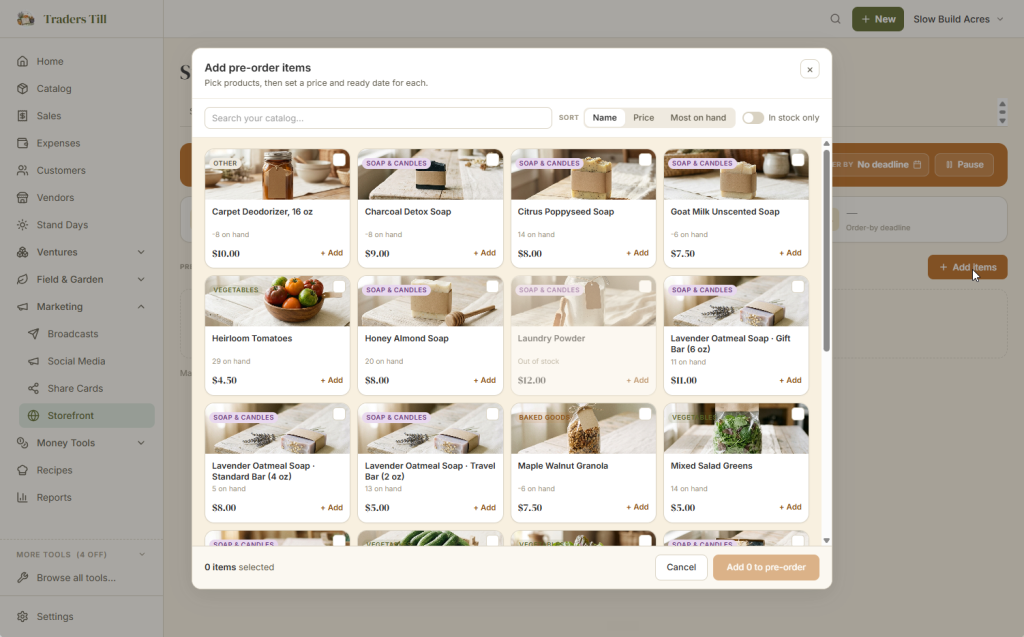
Open Storefront in the navigation (Marketing -> Storefront), go to the Pre-order tab, and tap Add items. A picker opens over your catalog: pick products, then set a price and ready date for each.
A few things about the menu:
- The price is a snapshot. Whatever you set here is what the menu shows, and later catalog price changes never touch it.
- The ready date is optional. It renders as “Ready Jun 23” next to the item on your public page, so customers know when to expect it.
- Each item card shows its pending count. You can see at a glance how many pre-orders of each item are waiting.
- Sold out is a manual flag. Tap Mark sold out when you’ve taken as many as you want; the item stays visible with a Sold Out badge and can’t be reserved. Mark available turns it back on. Removing items from the menu isn’t available yet, so sold-out is also how you retire one for now.
Digital products can go on the menu like anything else; the buyer’s download link arrives automatically with their confirmation or payment email. The details are in Digital Products.
To announce a new or changed ready date, edit the date on the item’s card, tick Email customers who reserved, and tap Save. Everyone with a pending reservation of that item gets the update by email, and the page confirms how many were notified.
How do I set an order-by deadline or pause the menu?
Both controls sit in the status bar at the top of the Pre-order tab. Tap the Order by button to set a deadline date: the last day customers can place a pre-order. The deadline shows on your public page, and it is enforced, not just displayed; after it passes, the page says pre-orders have closed and the server refuses new reservations. Clear the date for no deadline.
Pause stops all reserving immediately, whatever the deadline says. Your public page tucks the menu away and shows a note that pre-orders are paused, with a follow box so visitors can hear when you reopen. Resume turns it back on. Use pause for vacations and busy weeks; use the deadline for a production cutoff, like Thanksgiving orders.
How do customers place a pre-order?
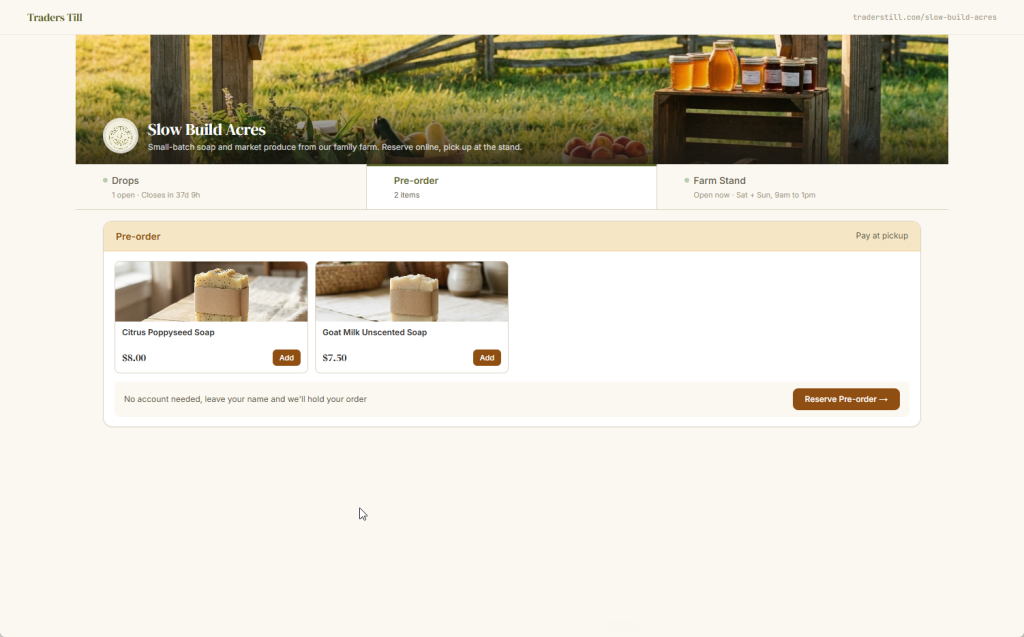
On your storefront at /store/your-slug, the Pre-order section lists your menu with prices and ready dates, plus the order-by deadline if you set one. Customers add items, tap Reserve Pre-order, and enter their name, email, and optional phone number. A phone number brings up a Text Me Order Updates checkbox, unticked unless they choose it, carrying the message-rates and STOP-to-cancel fine print and a plain note that consent is not required to buy. That checkbox is the only thing that records permission to text them. Order texts are not sending yet, so ticking it starts no messages today; it means you have consent on file for when they do.
What happens next depends on your payment setup. If you take card payments online, the customer goes straight to a secure Stripe checkout page and pays by card before anything else; set a deposit percent for pre-orders in Settings, then Payments, and the checkout charges just the deposit, with the balance due at pickup.
Connecting Stripe and choosing what each channel accepts is covered in Getting Paid Online. Pay-in-person orders skip checkout: the confirmation screen and email show what they reserved and the total due in person.
There is no pickup window to choose on a pickup pre-order; the customer comes by once the items are ready. That is the big customer-facing difference from a drop, which always books a specific window.
How do pre-orders relate to drops and the pickups board?
Pre-orders and drops are two channels on the same storefront, and you can run both at once. Reach for a drop when you’re batching: set quantities, a window, and pickup slots, and let it sell down. Reach for pre-orders for made-to-order goods where the only limit is your patience. The full drop lifecycle is covered in Selling with Drops.
On the fulfillment side they converge. Every pending pre-order appears on the Pickups board alongside drop reservations; pre-order rows just have no window time, so they sort after the windowed ones. Rows show when each order was placed, and an order that was paid online carries a Paid badge so you can tell it apart at a glance. Tapping Mark Picked Up records the real sale: payment method, inventory movement, and venture totals all happen at that moment, and an online card payment is kept on the sale automatically. See The Pickups Board for the pickup-day workflow.
Can pre-orders be delivered or shipped?
Yes to both, and shipping is pre-orders only. If your storefront offers local delivery, a Delivery windows section appears on the Pre-order tab. Add run slots (date, times, and a max number of deliveries, or no limit), and a customer choosing delivery must book one. No windows listed means pre-orders are pickup only; delivery simply isn’t offered.
Shipping is the third option: a customer can have a pre-order mailed for your flat fee, but only for products you’ve marked as able to ship, and never on a drop. Setup and the item-by-item rules are in Shipping Pre-Orders.
Common questions
Do customers pay when they place a pre-order?
That depends on your payment setup. With Stripe connected and card payments on for pre-orders, the customer pays by card at a secure checkout right after reserving, in full or just a deposit if you set one. Otherwise they pay in person at pickup, and the confirmation page and email both show the total due.
How do I stop taking pre-orders for a while?
Two ways. Tap Pause on the Pre-order tab to stop all reserving until you tap Resume; your page says pre-orders are paused and offers a follow box. Or set an order-by deadline, and reserving closes automatically after that date. To stop just one item, mark it sold out.
Can I limit how many of an item people can pre-order?
Not with an automatic per-item cap. Pre-order items are either available or marked sold out by you; there is no quantity counter like a drop has. When you have made as many as you want to make, tap Mark sold out on the item. If you need hard quantity caps and a deadline built in, run a drop instead.
How do I tell customers their pre-order is ready?
Set or change the item's ready date on the Pre-order tab and tick "Email customers who reserved" before saving. Everyone with a pending reservation of that item gets an email with the new date. The ready date also shows on your public page next to the item.
Can customers get a pre-order delivered or shipped?
Yes, if you offer it. With storefront delivery on, add delivery windows on the Pre-order tab; a delivery pre-order books one of those run slots, and no windows means pickup only. Shipping is pre-orders only: turn it on in delivery settings and mark which products can ship. Drops never ship.
What is the difference between pre-orders and a drop?
A drop is a timed event with set quantities and pickup windows: it opens, sells down, and closes. Pre-orders are a standing menu with no clock and no per-item caps; customers order whenever, and you make the items. Both take reservations the same way, land on the same pickups board, and get paid the same ways.
Keep Reading