
Collecting and Showing Customer Testimonials

A few honest sentences from a happy customer sell better than anything you could write about yourself. Testimonials let you gather those sentences in two ways: type in quotes customers have already given you, or let customers send their own from your public page. You approve every single one before it appears, so nothing shows up on your storefront that you haven’t read. Testimonials are part of the storefront, so you’ll need the Bloom plan to manage them.
Where do testimonials live?
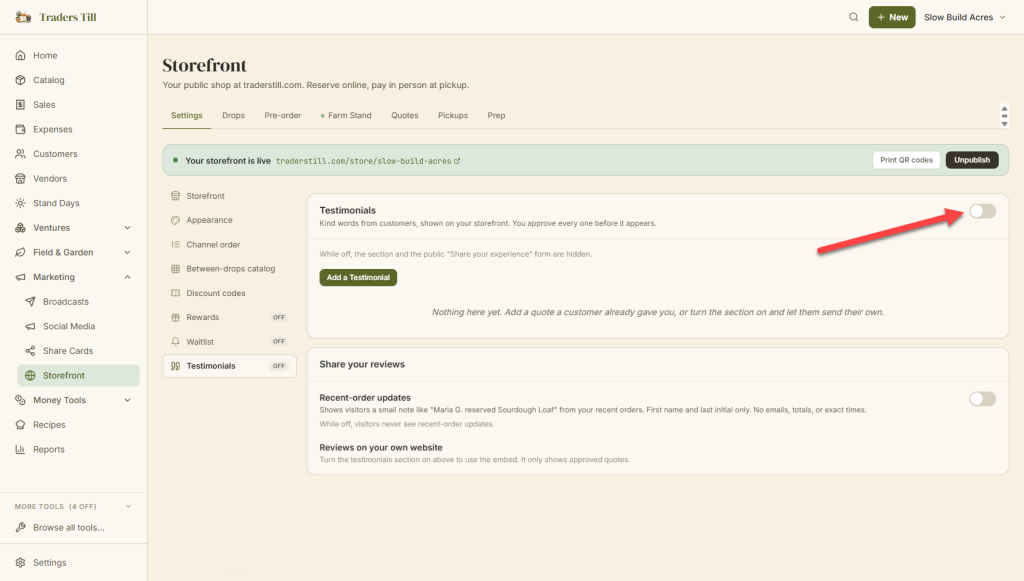
Open Storefront in the navigation, stay on the Settings tab, and pick Testimonials from the section list on the left (chips across the top on a phone). It’s the last section, marked with a quote icon.
The section’s badge does double duty. It reads On or Off to match your toggle, and when customers have sent in quotes you haven’t reviewed yet, it switches to a count like 2 to review so you can see the backlog from anywhere in Storefront Settings.
Two things need to be true before the panel is useful:
- Your storefront exists (the section is grayed out until your first
save; see Setting Up Your Storefront). - The section toggle at the top of the panel is on. While it’s off, the
public “Kind words” section and the “Share your experience” form are
both hidden. The toggle starts off, so nothing appears on your page
until you decide it should.
How do I add a testimonial myself?
Tap Add a Testimonial to type in a quote a customer has already given you, from an email, a market chat, or over the table at the stand. The form has three fields:
- Customer Name: how they’ll be credited, like “Maria G.” First
name and last initial is plenty. Up to 80 characters. - Detail Line (optional): a small line under the name, like
“Regular since 2025” or a town. Up to 120 characters. - Their Words: the quote itself, up to 600 characters. Plain text
only.
Tap Save Testimonial and it’s live immediately; quotes you add yourself skip the review queue, because you adding them is the review. New quotes join the end of the list, and you can reorder them any time.
How do customers send their own?
While the section is on, your public storefront shows a small collapsed card that reads Share your experience. A customer taps it, types their name and a few sentences about how it went, and taps Send it in. No account, no login. They see a thank-you note telling them the stand reviews every note before it appears.
Their submission lands in your Testimonials list with a Waiting for review badge, and nothing shows publicly until you approve it. Each entry in your list says whether it was sent from your storefront or added by you, with the date it arrived.
A few quiet protections run behind the form:
- Everything is stripped to plain text before it’s saved.
- Quotes containing a web address are rejected outright, which stops
most drive-by spam. - Each visitor is limited to a handful of submissions per hour.
Your approval is the real gate, though. If something odd slips through, it still can’t reach your page without you tapping Show.
How do I approve, hide, reorder, or delete a quote?
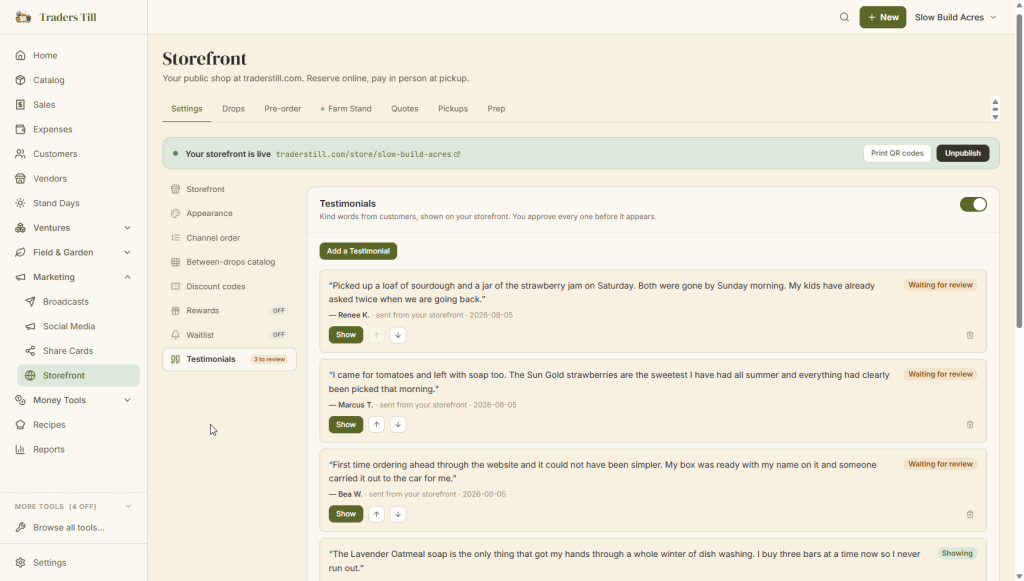
Every quote in the list has the same small toolbar:
- Show approves a quote so it appears on your public page. Pending
and hidden quotes both have this button. - Hide takes an approved quote off the page without deleting it. It
stays in your list, dimmed, and Show brings it back. - The up and down arrows move a quote through the display order.
The order here is exactly the order customers see. - The trash icon deletes a quote for good, after a confirmation.
Deleted testimonials can’t be brought back, so use Hide when you’re
not sure.
Badges keep the state readable at a glance: Showing, Waiting for review, or Hidden. One thing to know: once you’ve acted on a customer’s quote, it never goes back to “Waiting for review.” From then on it’s simply shown or hidden, like one of your own.
Where do testimonials appear on my storefront?
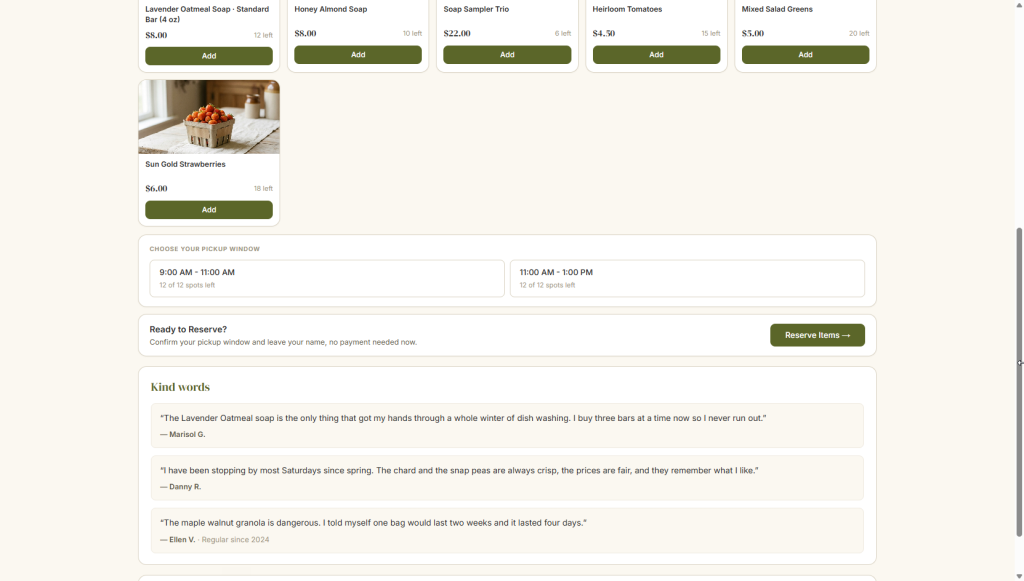
Approved quotes render near the bottom of your public page in a section headed Kind words, in the order you set, each with the quote, the name, and the detail line if there is one. No dates are shown publicly. The section appears on all three storefront layouts.
The “Kind words” block only renders once you have at least one approved quote, so a freshly enabled section with an empty list doesn’t leave a bare heading on your page. The “Share your experience” card, on the other hand, shows whenever the section is on; that’s how your first customer quote arrives.
Can I show these reviews on my own website?
Yes. Right below the Testimonials panel, the Share your reviews card gives you a copy-paste snippet that embeds your approved quotes on any website you run, and it stays current as you approve new ones. The same card holds the recent-order updates toggle. Both are covered in Social Proof and the Review Embed.
Once a few kind words are up, take a look at your page the way a customer would; What Customers See walks through the whole public storefront.
Common questions
Do customers need an account to leave a testimonial?
No. The "Share your experience" card on your public storefront asks for a name and a few sentences, nothing else. No login, no email address. What they send lands in your Testimonials list marked "Waiting for review," and it never appears publicly until you tap Show.
Why isn't a customer's testimonial showing on my storefront?
Customer submissions start out hidden and wait for your approval. Open Storefront, go to the Settings tab, then Testimonials, and tap Show on the quote. Also check that the section toggle is on; while it's off, the whole "Kind words" section and the submission form are hidden from your public page.
Can customers put links in a testimonial?
No. The public form rejects any quote containing a web address as a spam defense, and everything submitted is stripped down to plain text. Quotes you type in yourself from the settings panel aren't checked for links, since you're vouching for your own words.
What is the difference between hiding and deleting a testimonial?
Hide takes a quote off your public page but keeps it in your list, dimmed, so you can tap Show later to bring it back. Delete removes it for good; there's a confirmation dialog because a deleted testimonial can't be brought back.
Do Traders Till testimonials have star ratings?
No. Testimonials are written quotes with a name and an optional detail line. There are no star ratings, photo attachments, or owner replies today.
Do I need the Bloom plan to use testimonials?
Yes. Testimonials are part of the storefront, which is a Bloom feature. Adding, approving, hiding, reordering, and deleting quotes all require Bloom or above. A page that's already published stays up, but the controls show the upgrade gate until you're on Bloom.
Keep Reading