
Selling with Drops

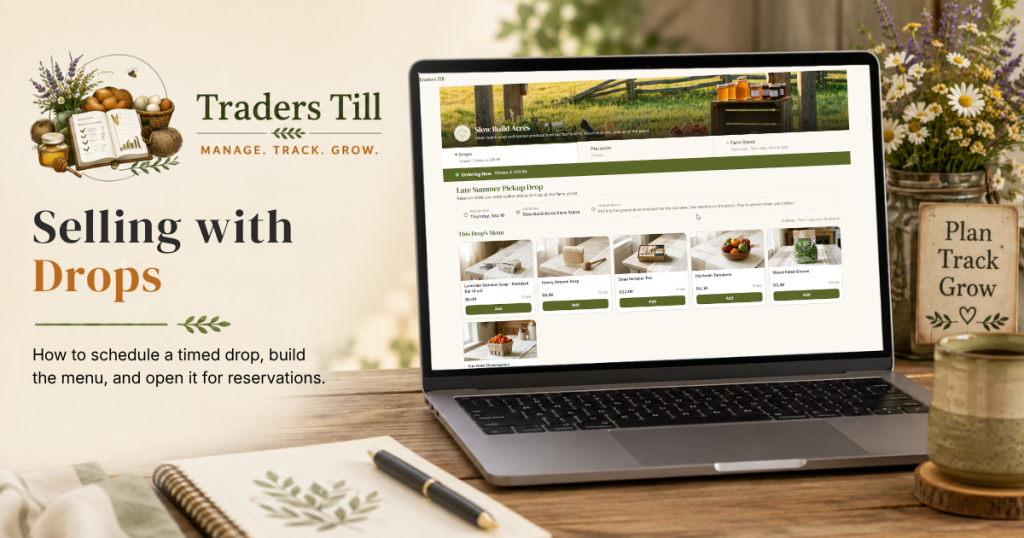
A drop is how most home producers sell online without running a full store: open a window, take reservations against what you plan to make, and hand everything over at pickup. This guide covers the whole lifecycle, from scheduling to the emails that go out along the way.
What is a drop?
A drop is a timed sales window with its own menu, its own quantities, and one or more pickup windows. You set when it opens and closes. While it’s open, customers reserve items on your public storefront page and choose a pickup window. Payment works either way you like: with Stripe connected, customers pay by card when they reserve; otherwise the money changes hands at pickup. See Getting Paid Online for the card setup.
A drop moves through five statuses: Draft, Scheduled, Open, Closed, and Cancelled. Scheduled drops flip to open at the open time on their own, and stop taking reservations at the close time. You can also close or cancel one early.
How do I schedule a drop?
Open Storefront in the navigation, go to the Drops tab, and tap Make a Drop. The wizard has four steps: Basics, Menu, Pickup Windows, and Review.
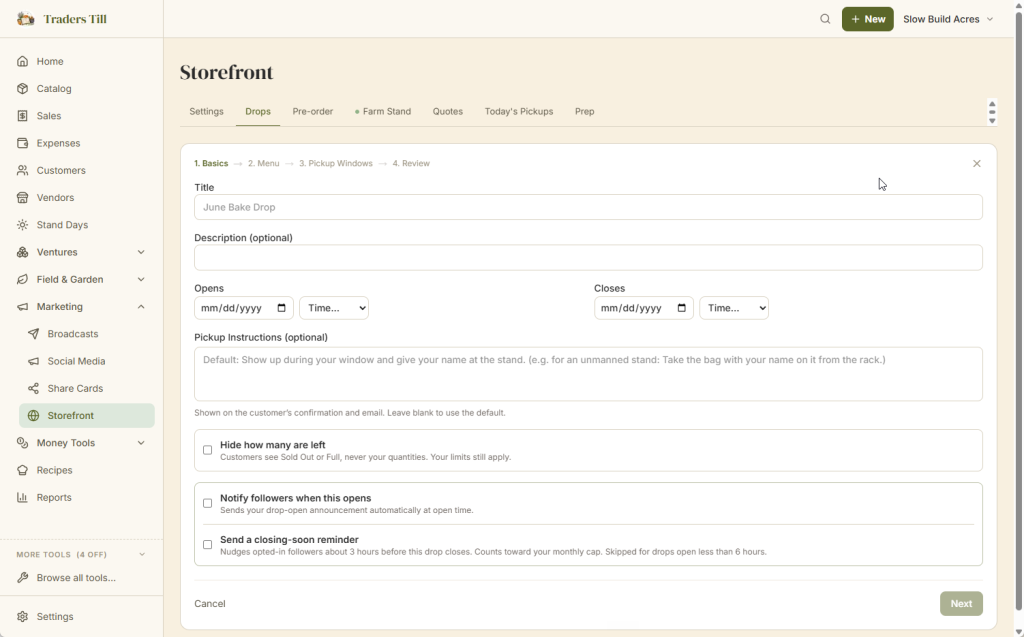
- Basics. Give the drop a title (like “June Bake Drop”), an optional description, and the open and close date and times. The close time must be after the open time. You can also write pickup instructions here; they show on the public drop page under Pickup Notes, on the customer’s confirmation, and in the email. Leave them blank and the drop simply shows no notes section, while the confirmation falls back to the default that tells customers to give their name at the stand.
- Menu. Add items from your catalog one at a time. Each line gets a quantity and a price. The price starts from the product’s saved price, and whatever you set is snapshotted, so later catalog price changes never touch a live drop. If an item has tracked stock, you can have its availability follow your live on-hand count instead of a typed number.
- Pickup Windows. Add at least one window: a date, start and end times, and a max number of reservations (or no limit). Each window gets a location: your farm stand, a saved market with an address, or a custom label. If a location has saved hours, the wizard can split those hours into slots for you.
- Review. Tap Save as Scheduled to make the drop go live at its open time, or Save Draft to keep working on it. Drafts never appear on your public page.
Two more choices live on the Basics step. Hide how many are left keeps your quantities private: customers see Sold Out or Full, never numbers, and your limits still apply. And if delivery is turned on for your storefront, you can offer delivery for this drop with its own delivery windows, separate from pickup. See Delivery Options for the storefront-level setup.
How do reservations work during a drop?
While the drop is open, customers add items on your storefront, pick a pickup window, and enter their name, email, and optional phone number. Each reservation immediately takes from the drop’s remaining quantities and from the chosen window’s spot count, so two customers can never claim the same last loaf. When an item runs out it shows Sold Out; when a window fills it shows Full.
What happens next depends on how you take payment. If card payment is on for drops (it’s on by default once you connect Stripe; see Getting Paid Online), the customer goes straight to a secure Stripe checkout, and their confirmation email arrives once the payment goes through. A checkout they abandon releases the held items after about 30 minutes, so nothing stays stuck. Without card payment, the reservation confirms right away, and the email lists the items, the total due at pickup, the window they chose, and your pickup instructions. Either way, that email is transactional, so it never counts against any send cap.
Two more notes on the money side. If you’d rather hold spots with a partial payment, set a deposit percent for drops in Settings → Payments: checkout then charges just that slice, and the balance is due at pickup. And drops can sell digital products too; an order that includes one carries a download link on the confirmation and in the email. See Digital Products.
One thing a reservation does not do is touch your inventory. Drop quantities are a promise ledger, not a stock count. Your real inventory moves later, when you mark the order picked up and it becomes a sale.
How do customers find my drop?
Your storefront lives at /store/your-slug, and the soonest drop shows as the main event on the page. If an open drop and a scheduled drop overlap, the open one always wins the top spot.
Any other visible drops appear as a banner of slim cards under the main one. An open drop’s card says it “is also accepting orders” with a live dot; an upcoming one says it “is coming up.” Tapping View on a card switches the page to that drop.
Each of those cards is really a link with ?drop= and the drop’s id on the end. That same link is shareable: post it on social media or in a broadcast and it opens your storefront with that exact drop showing first.
What do customers see before, during, and after a drop?
Before the open time, a scheduled drop shows as a preview: the title, a countdown in days (“Tomorrow”, “3 days away”), and an email box so visitors can follow your stand and hear when it opens. Nobody can reserve early; the server turns away any attempt before the open time.
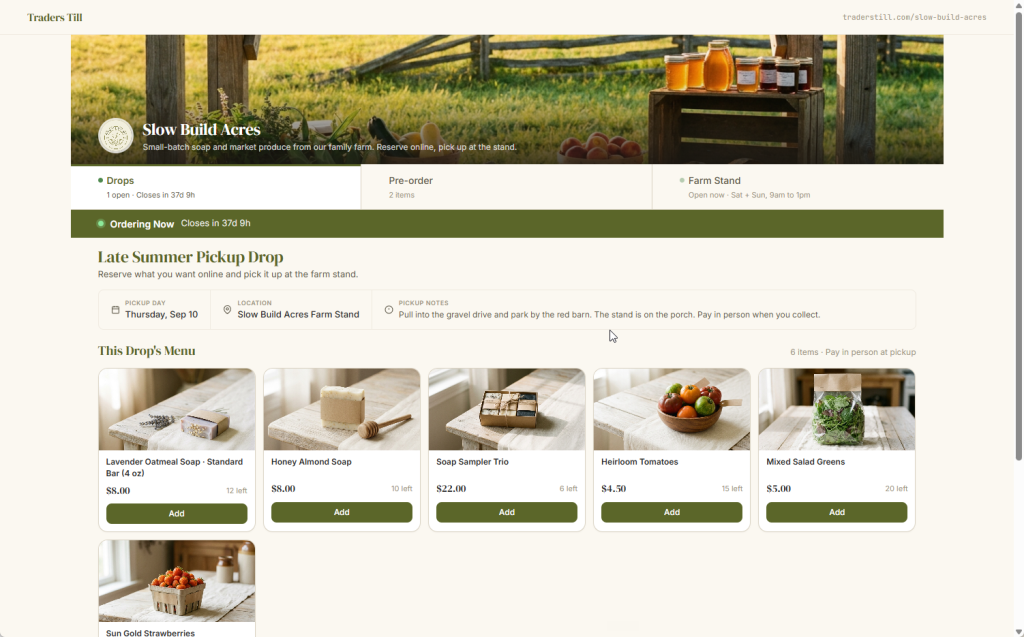
During the drop, customers see the menu with prices, how many of each item are left (unless you hid the counts), and a closing countdown. If everything sells out while the drop is still open, the page says so and offers the follow box instead of the order form.
After the close time, the drop leaves your public page entirely. If no other drop is scheduled, visitors see your browse-only showcase and the follow box, so the page is never a dead end between drops. Closed and cancelled drops stay in your Drops list, marked with their status, and open with a View link.
Which emails can go out when a drop opens or closes?
Two optional follower emails ride the drop lifecycle, both toggles on the wizard’s Basics step, and both count toward your monthly broadcast cap (1,000 emails a month on Bloom; see Broadcasts).
Notify followers when this opens sends your drop-open announcement automatically at open time to followers who opted in to marketing. The message prefills from your template in Settings → Broadcasts (or the built-in default), and you can reword it for just this drop. The subject line is the drop’s title plus “is open.” A background check runs every few minutes, so the email lands shortly after the open time. If a send would put you over your monthly cap, it’s skipped and recorded in your broadcast history so you can see exactly what didn’t go out.
Send a closing-soon reminder nudges opted-in followers about 3 hours before the drop closes. It’s skipped for drops open less than 6 hours, since the open announcement already carried the urgency. This one uses a fixed short message.
Order confirmations are separate from both. They always send, on any storefront order, and never touch the cap.
How do I watch a live drop and close it out?
Tap Manage next to the drop in your Drops list. The live view shows each item’s remaining count and every reservation, grouped by pickup window, with the customer’s name, contact, and order lines.
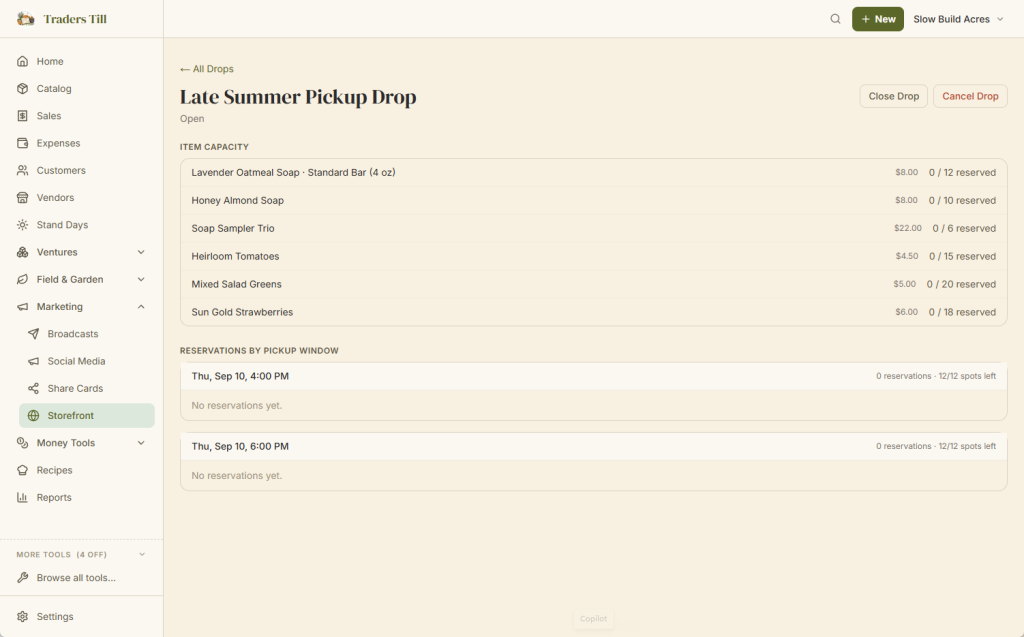
From there you have two early exits:
- Close Drop stops new reservations right away and keeps every existing reservation in place. Use it when you’ve hit your real-world limit before the clock ran out.
- Cancel Drop calls the whole thing off. Every pending reservation is marked cancelled, and the drop comes off your public page. Traders Till does not email customers about a drop-level cancellation, so contact them yourself. Cancelling a single reservation from this page, by contrast, does email that customer. Cancelling never moves money on its own: if someone already paid online, issue their refund from your Stripe dashboard.
What happens after the drop closes?
Fulfillment. Customers arrive during their pickup windows, and you check them off from the drop’s Manage page or from the Pickups board, which gathers every pending order across drops and pre-orders. Tapping Mark Picked Up records a real sale: payment method, inventory movement, and venture totals all happen at that moment, exactly like a Quick Sale Pad sale. An order paid online is already settled, so it records as a card sale without asking; if only a deposit was paid, you choose the method for the balance. Customers who never showed can be marked no-shows so your numbers stay honest.
The full pickup-day workflow, including delivery orders, is covered in The Pickups Board.
Common questions
Do customers pay online when they reserve from a drop?
They can. Once you connect Stripe, drop reservations send the customer to a secure card checkout, and the money lands in your own Stripe account. If you haven't connected Stripe, or you turn card payment off for drops in Settings → Payments, customers reserve without paying and the confirmation page and email both say the total due at pickup. See Getting Paid Online for the setup.
What is the difference between a drop and pre-orders?
A drop is a timed event: it opens, customers reserve against set quantities, and it closes. Pre-orders are a standing menu with no open or close time and no per-item quantity caps. Use drops for bake-day batches and limited runs; use pre-orders for things you make whenever they're ordered.
Does a drop reservation reduce my inventory?
No. A reservation only uses up the drop's own capacity numbers. Your real stock count moves when you tap Mark Picked Up, which records the actual sale. So an unclaimed reservation never leaves your inventory wrong. If you set an item to follow live stock, the drop also re-checks your on-hand count at reserve time.
Can I keep selling in person while a drop is running?
Yes. Drop quantities are separate from your stock count, so stand sales and drop reservations don't collide by default. If you'd rather have the drop track reality, set an item's availability to follow live stock when you build the menu. Then a stand sale during the drop shrinks what customers can still reserve.
How do I share a link to one specific drop?
Add ?drop= and the drop's id to your store link, like /store/your-slug?drop=abc123. That link opens your storefront with that drop front and center, even when another drop would normally show first. The banner links under your main drop use the same format, so you can copy one from there.
What happens to reservations if I cancel a drop?
Cancelling a drop marks every pending reservation cancelled and takes the drop off your public page. Traders Till does not email those customers for a whole-drop cancellation, so reach out to them yourself. If you only need to cancel one reservation, do it from the drop's Manage page, and that customer does get an email.
Keep Reading