
Adjusting Stock and Managing Variants

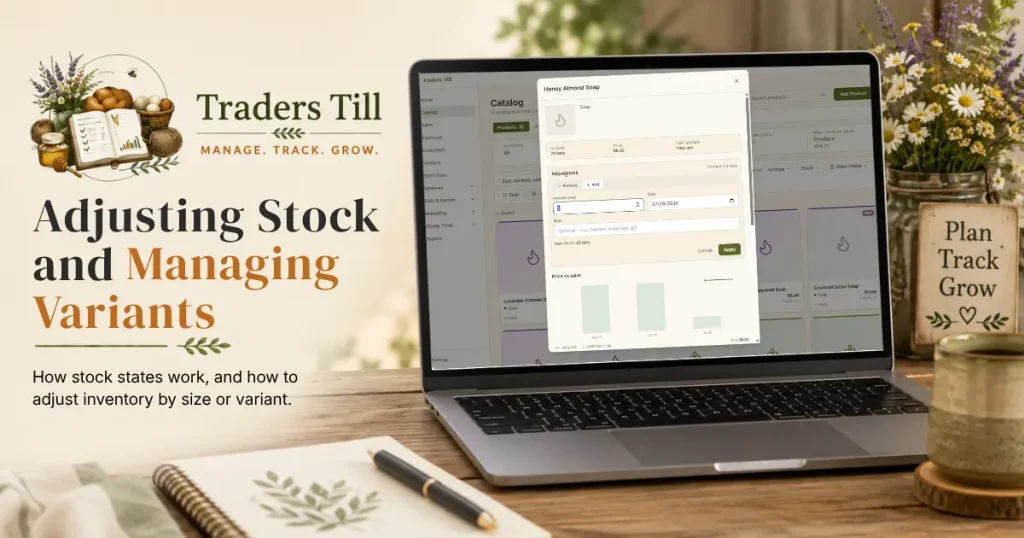
Stock in Traders Till mostly takes care of itself: sales decrement it, and initial stock is set when you add the product. Adjust Stock is for everything in between, like logging a new batch, correcting a count, or noting the jars you took for the pantry.
What are the five stock states?
Every product in your catalog is in exactly one of five states, and the catalog badges and filters follow them:
- In Stock. Every tracked size has stock above its low threshold. No badge.
- Low Stock. Everything is in stock, but at least one size is at or below its low-stock threshold. Shows a “Low” badge.
- Some Out. On a multi-size product, at least one tracked size is at zero while another still has stock. Shows a “Some out” badge.
- Out of Stock. Every tracked size is at zero (or below). Shows an “Out” badge.
- Not Tracked. No size has inventory tracking turned on. Shows no count and never warns.
When states compete, the more urgent one wins: Out beats Some Out, which beats Low, which beats In Stock. You can filter the catalog by any of these under the Stock filter.
How do I adjust stock?
Open the product from your catalog and tap Adjust Stock. If you have saved a barcode on the size, the Scan button in the catalog toolbar is the fast way to get there: scan the code on the packaging and Traders Till opens that exact item, ready to adjust. Live camera scanning needs a supported phone browser like Chrome or Safari on your phone; everywhere else, and any time the camera will not cooperate, Type it instead takes the number by hand and works the same way. See Adding Your First Product for where the barcode field lives.
A small form opens showing the current count, and it collects:
- A direction: Remove or Add.
- An
Amount, in the size’s unit. - A
Date(defaults to today, for backdating a count you took over the weekend). - A
Note(optional, like “harvest” or “breakage”).
The form previews the resulting New Stock number as you type. Tap Apply and the adjustment posts right away; the product’s count and inventory history update to match.
When you choose Remove, the form also asks “Why are you removing this?” with four reasons: Stock adjustment, Personal use, Gift, and Sample. Gift asks for the recipient’s name in the note. Donations and spoilage are deliberately not on that list; the form links to the Donations and Waste pages instead, because those flows also record the tax entry that a bare stock adjustment would skip.
How do I adjust one size on a multi-size product?
Use the Sizes section on the product’s detail view. Products with more than one size list each size as its own row showing its name, stock-state badge, current count, and price, with an Adjust button per row. Tap Adjust on the size you want and the same form opens, labeled with that size (like “Brown Eggs · Half Dozen”), so the adjustment lands on exactly that size.
Each size also has its own archive control here. Sizes you archive drop out of pickers and the catalog but stay queryable for history, and you can restore them later from the “Show Archived Sizes” toggle.
How do sizes roll up to the product’s overall state?
The product-level state is computed only from sizes that are tracked and not archived. The rules:
- No tracked sizes at all: the product reads Not Tracked.
- Every tracked size at zero or below: Out of Stock.
- Some tracked sizes at zero, others with stock: Some Out.
- All in stock but any size at or below its low threshold: Low Stock.
- Otherwise: In Stock.
Untracked sizes never drag a product’s state down, and archived sizes are ignored entirely, so retiring an empty size will not leave a product stuck on “Some out”.
Can stock go below zero?
Yes. A sale, donation, or write-off that outruns your recorded stock still goes through by default; you get a warning that the size dropped below zero, and the negative count shows in the catalog until you reconcile it. That is on purpose: the count being wrong should never stop you from recording real money at the market table.
You can change the behavior in Settings under Sales. The Negative Stock setting (“When an Entry Would Go Below Zero”) has three options:
- Allow. Record it silently.
- Warn. Record it and show a below-zero warning. This is the default.
- Block. Refuse the entry until you adjust stock first.
Why is Archive blocked when there is still stock?
You cannot archive a product (or a single size) while any tracked size has a non-zero count. The app refuses with a message ending “Adjust to zero first.” Negative counts block archiving too, since they represent an unresolved discrepancy. Untracked sizes are exempt.
The fix is quick: open Adjust Stock, remove the remaining count (or add back up to zero if it went negative), then archive. Archived products keep their history and can be restored any time.
Common questions
What does "Some out" mean on a product?
"Some out" appears on multi-size products when at least one tracked size is at zero but at least one other size still has stock. For example, if Dozen is sold out but Half Dozen has six cartons left, the product reads Some Out. Adjust or restock the empty size to clear it.
Can I sell something that is out of stock?
Yes. By default the sale records and you get a heads-up that the item dropped below zero on hand, so a busy market day is never blocked. You can change this in Settings under Sales: the Negative Stock setting offers Allow (record silently), Warn (the default), or Block (refuse until you adjust stock first). It applies to sales, donations, and write-offs.
How do I record spoiled, wasted, or donated inventory?
Not through Adjust Stock. Use the Donations page or the Waste page instead; those flows remove the stock and record the tax-relevant entry (donation value, waste cause and cost) at the same time. The Adjust Stock form links to both. Its own removal reasons are Stock adjustment, Personal use, Gift, and Sample.
Where do I set the low-stock threshold?
On the product form. Edit the product, and each size with Track Inventory on has a Low-Stock Threshold field. You will see a "Low" badge whenever that size's stock is at or below the number you set. Leave it blank for no low-stock warning.
Why can't I archive a product that still has stock?
Archiving requires every tracked size to be at exactly zero. If any size has stock left (or has gone negative), the archive is refused with "Adjust to zero first." This keeps inventory honest: stock cannot quietly vanish into an archived product. Untracked sizes are exempt.
How do I stop tracking inventory for a product?
Edit the product and uncheck Track Inventory on the size. The item then shows "Not tracked" instead of a count, never warns about stock, and is excluded from stock totals. This is the right setup for services and made-to-order items.
Keep Reading