
Getting Started with Traders Till

Welcome. This guide walks you from a blank signup form to your first day inside Traders Till: creating the account, what the setup wizard asks and why, what your home dashboard shows before you have any data, and the two things worth doing first.
How do I create my account?
Go to the signup page and create an account one of two ways:
- Email and password. Enter your email and a password with at least 8 characters, including a number and a special character. Name is optional. Tap Create Account.
- Google. Tap Continue with Google and pick your Google account. No password needed, now or later.
Either way you are signed in immediately and the setup wizard starts. If you ever get stuck signing in later, see Password Reset and Logging In with Google.
What does the setup wizard ask?
The wizard is five short steps, and every step except the hobby picker can be skipped. The welcome screen says about 60 seconds, and that is honest if you skip freely.
- Welcome. Tap Get Started.
- Name. What do you call your operation? Type a name like Slow Build Acres, or tap Skip (you get “My Operation” and can rename anytime in Settings).
- Location. Country plus ZIP or postal code. Tap Look Up to confirm your state. This powers the weather chip on your dashboard and, later, sales tax. Skippable; you can add it in Settings later.
- Hobbies. Pick everything your operation includes. This is the one required step: pick at least one. More on what it does below.
- Finish. The photo step. Uploading an operation photo is not live yet, so this step also offers the add-to-home-screen instructions for your phone. Tap Finish Setup to land on your dashboard.
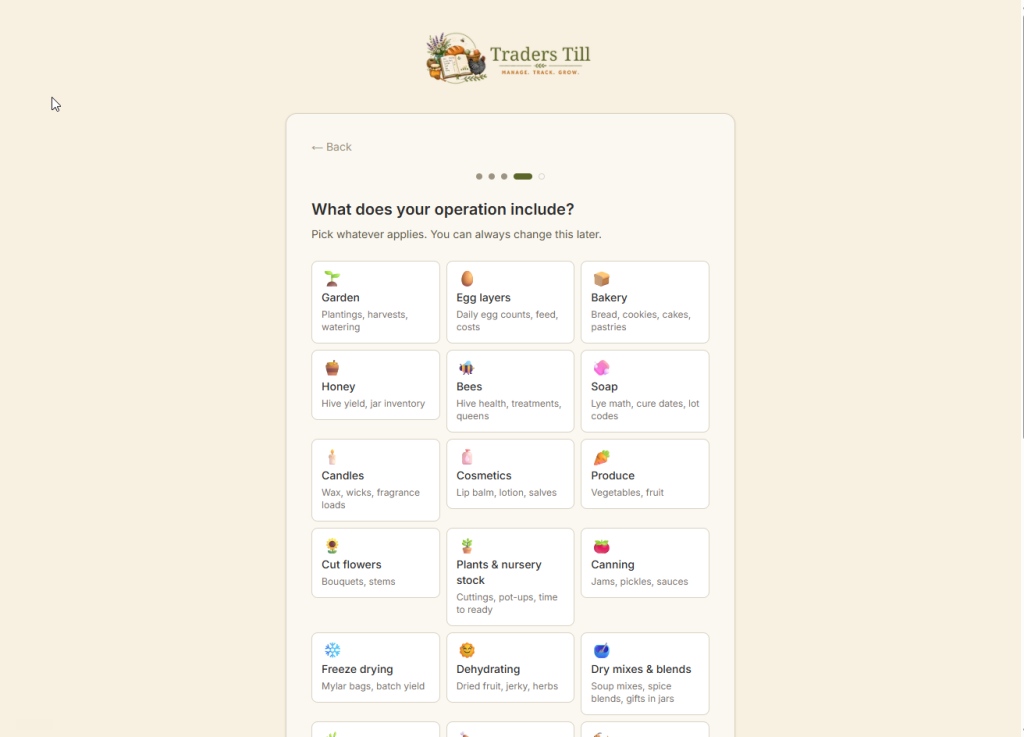
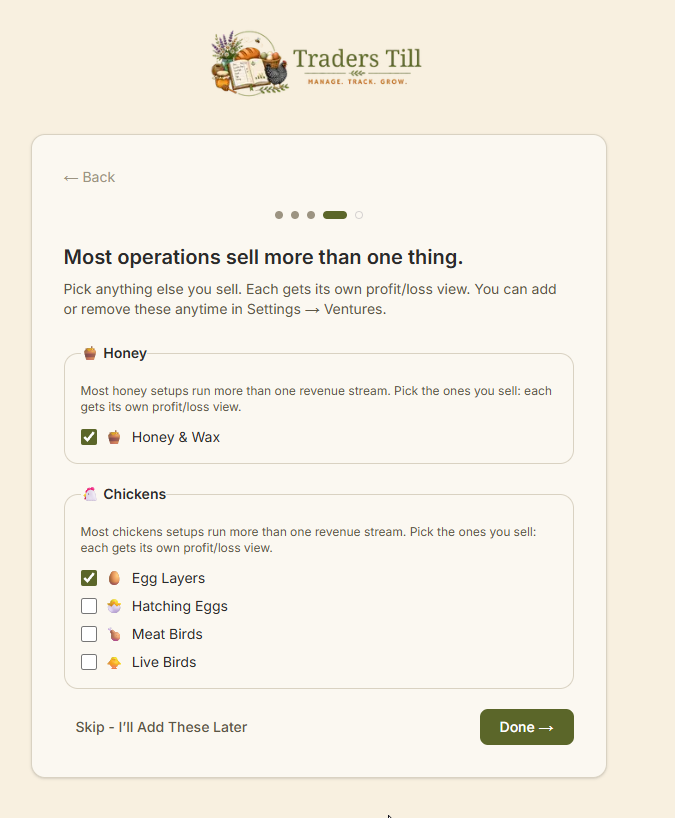
Two extra screens can appear between the hobby picker and the finish step, depending on what you picked:
- Common revenue streams. If a hobby you picked usually comes with side income (say, egg layers often also sell chicks or hatching eggs), this screen suggests those streams. Each one you accept becomes its own venture with its own profit and loss view. Tap Skip – I’ll Add These Later if you’d rather not decide now; you can add them in Settings under Ventures.
- Farmstand Hub. Covered in its own section below.
What does the hobby picker actually do?
The hobby picker turns on the parts of Traders Till that fit what you make, grow, or sell. Each card (Garden, Egg layers, Bakery, Honey, Soap, Candles, Canning, Cut flowers, Woodworking, Pottery, and more, 26 in all) activates a module and creates the matching venture, so the app opens already shaped around your work instead of showing you everything at once.
Picking a card never locks you in. Cards you skip can be turned on later, and cards you picked can be turned off, all from the Modules page in Settings. If your craft is not on the grid, you can send a request from Settings under “How can I improve?”.
What is the Farmstand Hub step?
If you picked hobbies that suggest a physical stand (produce, eggs, baked goods, honey, and similar), the wizard asks whether you want shoppers to find your stand on Farmstand Hub. Farmstand Hub is our sister product: a free public map of local farm stands. Listing is free with Traders Till.
You get three choices:
- Set It Up. Signals you want your stand listed. You finish the wizard, then configure your listing from Settings, under Channels, then Farm Stand.
- Continue. Skips for now. You can set it up from Settings anytime.
- Skip. Opts out and turns off future Farmstand Hub prompts.
Whichever you choose, the wizard continues to the finish step. You can change your mind anytime at Settings, under Channels, then Farm Stand.
What is a module?
A module is a switchable part of the app: a set of screens and tools for one kind of work, like the poultry module, the soap and candles module, or the storefront module. The hobby picker is really a module picker in friendly clothes. Your active modules decide what appears in your navigation, so a baker never wades through livestock screens and vice versa. You can turn modules on or off anytime at settings/modules (Settings, then Modules); a few advanced ones sit on paid plans, and some navigation entries show a “coming soon” placeholder for modules still being built.
What does the home dashboard show on day one?
On day one, your home dashboard shows the Day One welcome instead of charts: a greeting, a note that your ventures are ready, and three starting points. Add Your First Product (a photo, a price, and a venture is all it takes), Log a Sale if you are already selling, and Start the Tour, a two-minute guided walk through Catalog, Sales, and Reports. There is also a skip link straight to the dashboard, and a “Don’t Show This Again” option.
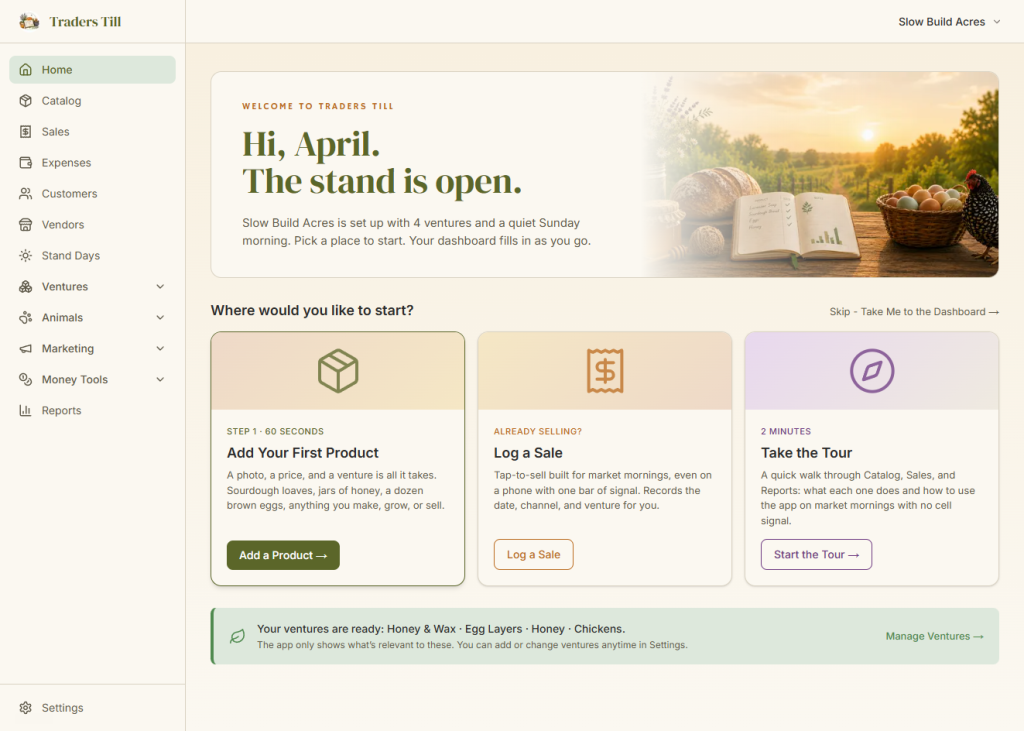
The guided tour also starts on its own the first time you sign in. You can replay it anytime from Settings, on the Product tour page.
Once you add your first product, the Day One screen retires and the full dashboard takes over: Quick Stats, a Sales Chart, Sales by Venture, Needs Attention (products running low or out), Recent Activity, and a This Week strip. A weather chip appears if you gave your location, and a Try This First tile suggests one small next action based on what you have turned on. You can rearrange or hide widgets with the customize button in the day header, which opens settings/dashboard.
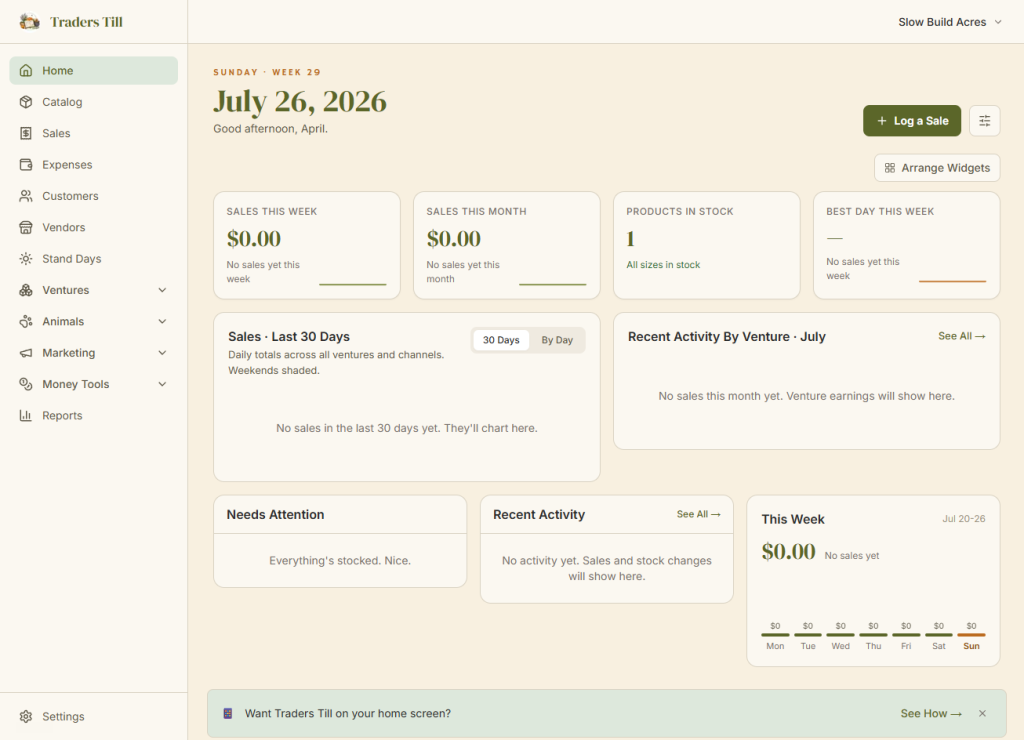
One note on the empty state: the Day One screen comes back if your account ever returns to zero products, unless you chose “Don’t Show This Again”. That is by design, so a fresh start gets the same friendly landing.
Where do I find Settings?
Settings lives behind the gear icon in the top header, on every screen. It is deliberately not in the main navigation. On desktop, the sidebar carries your main destinations (Home, Catalog, Sales, Expenses, Customers, and whatever your modules add). On mobile, the bottom bar holds Home, Catalog, Sales, and Expenses, with everything else under More. Inside Settings you will find your operation details, location, appearance, modules, ventures, sign-in options, and plan.
What should I do next?
Add your first product, then record your first sale. Those two actions light up almost everything else in the app.
- Open Catalog from the navigation and add a product: name, price, and venture. See Adding Your First Product.
- When something sells, open Sales and log it. The sale posts instantly and your dashboard starts filling in. See Recording a Sale.
A word on the free plan while you find your feet: it includes the whole core loop. Unlimited products in your catalog, sales tracking up to 50 recorded sales per calendar month, expense logging, and profit views by venture. You will see a heads-up as you approach the monthly sales cap, and nothing else in the app stops working when you hit it.
If you want to understand the venture idea before you add anything (it is the backbone of how Traders Till reports profit), read What Is a Venture. And when you are curious what the paid plans add, see Free vs Paid.
Common questions
Do I have to pay to start using Traders Till?
No. The free plan includes the product catalog, sales tracking (up to 50 recorded sales per calendar month), expense logging, and profit views by venture. Signup does not ask for a card. You can upgrade later if you outgrow the free limits.
I skipped naming my operation. How do I rename it later?
Skipping the name step during setup names your operation "My Operation". You can rename it anytime in Settings. Nothing else about your account changes when you rename.
Can I change what I picked in the hobby picker later?
Yes. The hobby picker just turns on modules, and modules can be turned on or off anytime at Settings, on the Modules page. Your ventures (the profit centers created during setup) are managed separately in Settings under Ventures.
I don't sell anything yet. Is Traders Till still useful?
Yes. Plenty of people sign up before their first sale. The free plan supports building your catalog, tracking stock and production, and logging expenses with no sales recorded at all. When you do start selling, the sales tools are already set up around what you make.
Can I use Traders Till on my phone?
Yes. Traders Till is a web app that installs to your home screen like a regular app. On iPhone or iPad, open traderstill.com in Safari, tap Share, then Add to Home Screen. On Android, open it in Chrome, tap the three-dot menu, then Install app. The app also prompts you with these steps during setup and on the dashboard.
Keep Reading